Hike Update: March 2018

We’re ending March 2018 with some pretty exciting updates! Here’s what’s new:
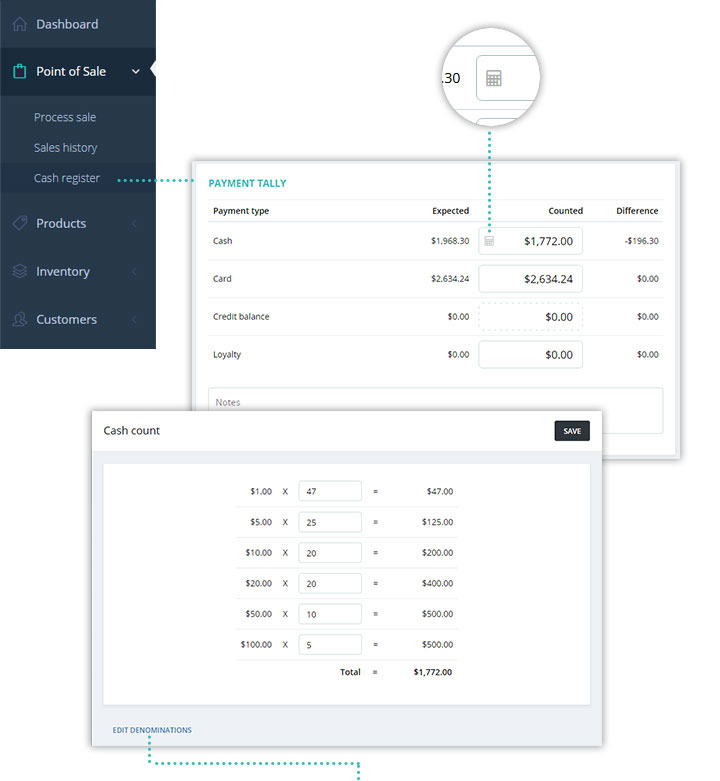
Calculator for cash counting on ‘Cash register’ screen
Before closing register simply enter number of notes and coins by denomination. Hike’s cash calculator will save the total amount for you. You’ll be able to review the counting at any time by visiting Reporting > Register > Shift report > select shift from the list > Payment summary.
Edit denominations
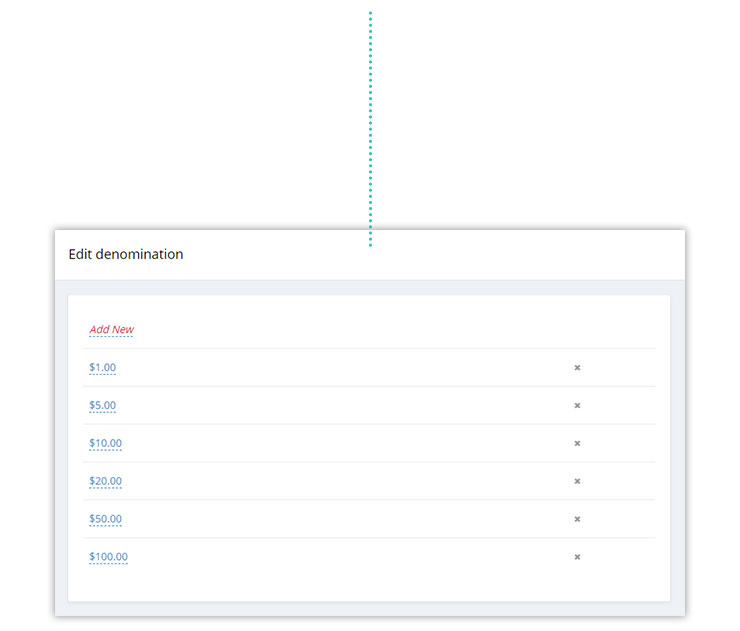
You’ll be able to edit and define denominations relevant to your region. For this, click on the calculator icon and click on ‘Edit denominations’. This will present you the list of existing denominations with option to remove existing or add new.
Sell in fractional (decimal) quantities
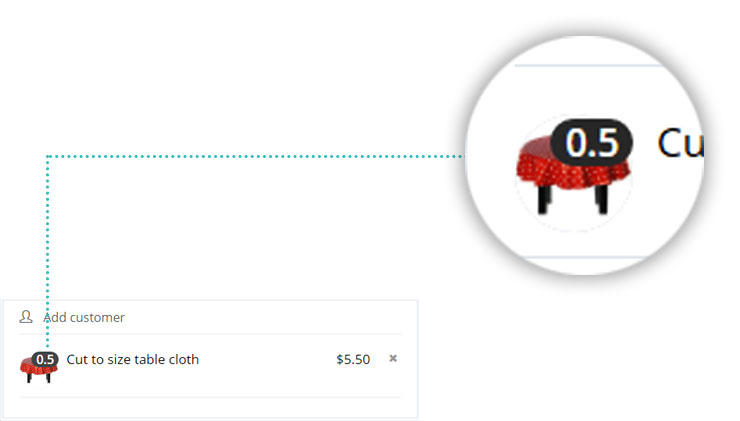
Hike now fully supports fraction quantities for both inventoried and non-inventory items. Sell items and inventory in decimal quantities.
IMPORTANT: This feature is not advised if you use an integrated eCommerce that do not support fractional quantities: Some of our eCommerce integration partners such as BigCommerce and WooCommerce, do not support fractional quantities. Your eCommerce platform may round it up to a nearest full number resulting in inventory errors. For example, if you sold 1.5 x ‘Product A’ on Hike, your eCommerce platform may round it up to 2, resulting in wrong inventory count. This in turn will create inventory error on Hike as well when your ecommerce platform sends an inventory update to Hike.
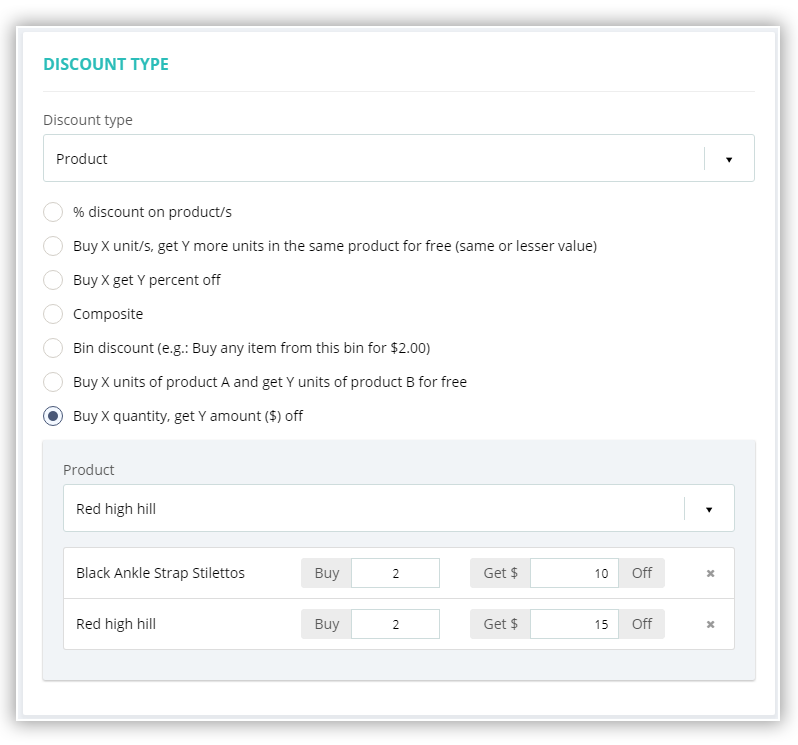
Buy X quantity for $Y off
Offer bulk buying discount to your customers. When a customer buys relevant product in required quantity, discount is triggered and automatically applied to the cart. The bulk buying discount will display in cart as a separate line item with discount amounts shown as negative value.
To create ‘Buy X quantity for $Y off’ discount, go to Products > Discount offers > Add Discount Offer > select ‘Product’ as discount type.
In case of variant products, you can choose to apply this discount to a main product (all variants) or specific variants. If you have variants with different pricing and select to apply this discount to main product, you’ll be presented with a popup notification advising of that so you can make an informed decision.
Manually issue store credit
Until now you were able to issue sale refunds as store credits. Now you can also issue store credits manually.
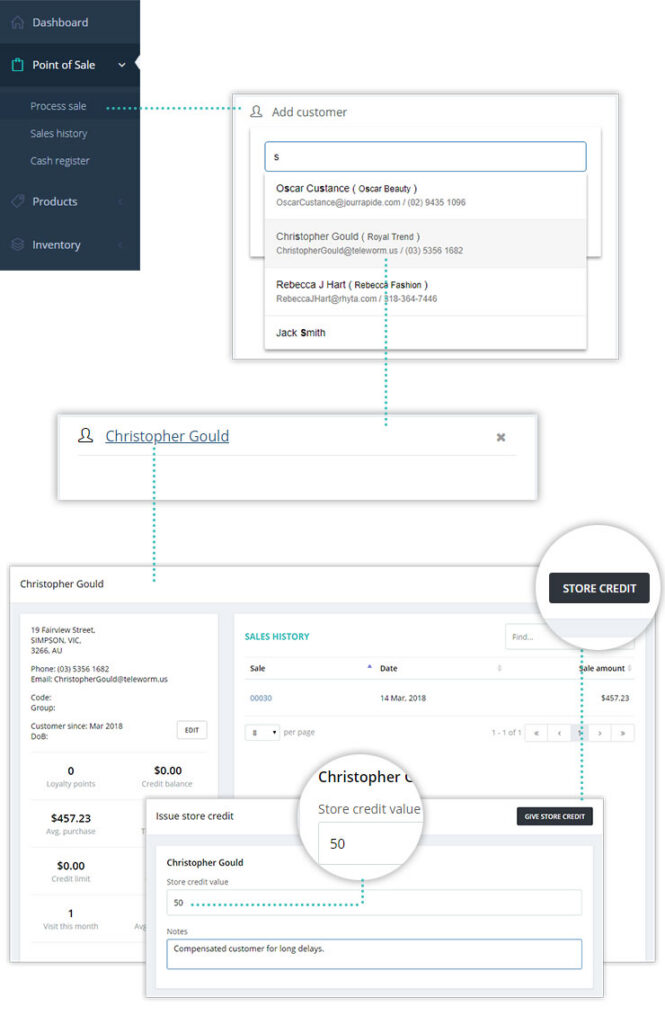
To apply store credit manually from POS screen
- 1) Add customer to a sale > Click on customer name to view profile
- 2) Click on store credit > This will show the list of store credit issued to this customer along with ‘Issue credit’ button on top right corner
- 3) Click on the ‘Issue credit’ button to enter credit amount and relevant notes.
To apply store credit manually from Customers list view
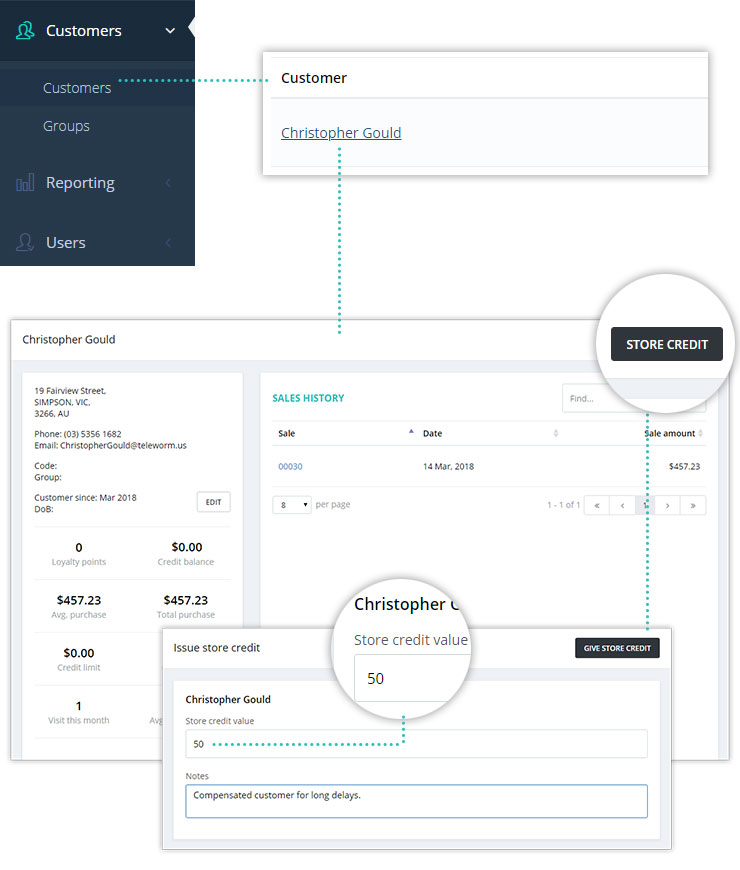
- 1) Go to Customers > Click on customer name to view profile
- 2) Click on store credit > This will show the list of store credit issued to this customer along with ‘Issue credit’ button on top right corner
- 3) Click on the ‘Issue credit’ button to enter credit amount and relevant notes.
‘Custom sale’ report
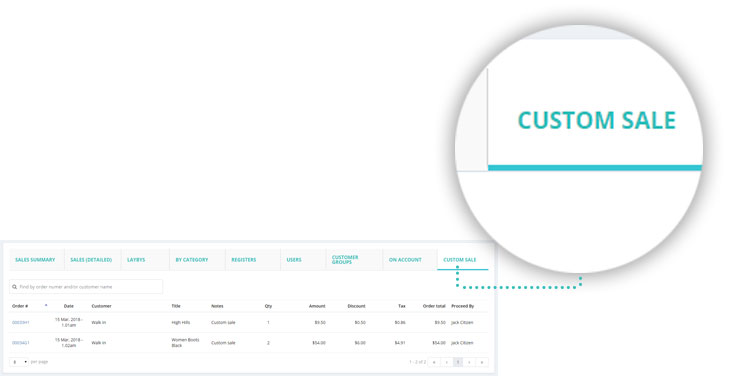
Miscellaneous items which are not entered in your POS as products, you can sell those as ‘Custom sale’ items. Now you can also view a detailed report on items sold as ‘custom sale’. For this, go to Reporting > Sales > Custom sale.
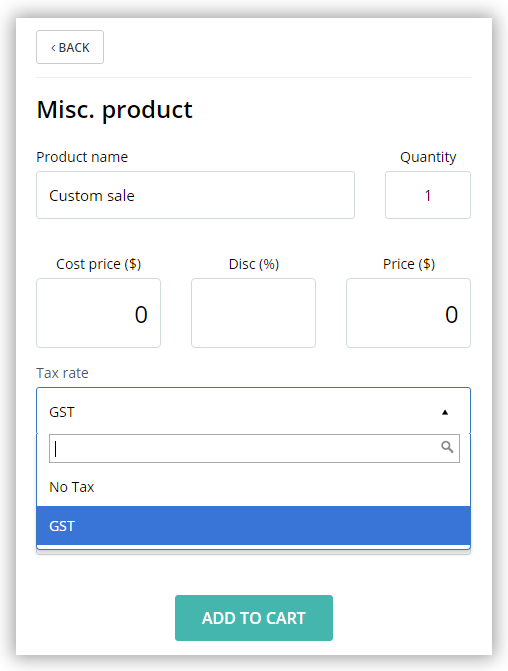
Cost price and tax for ‘custom sale’
Now you can also provide cost and tax details for custom sale items for improved profit and tax amount reporting.
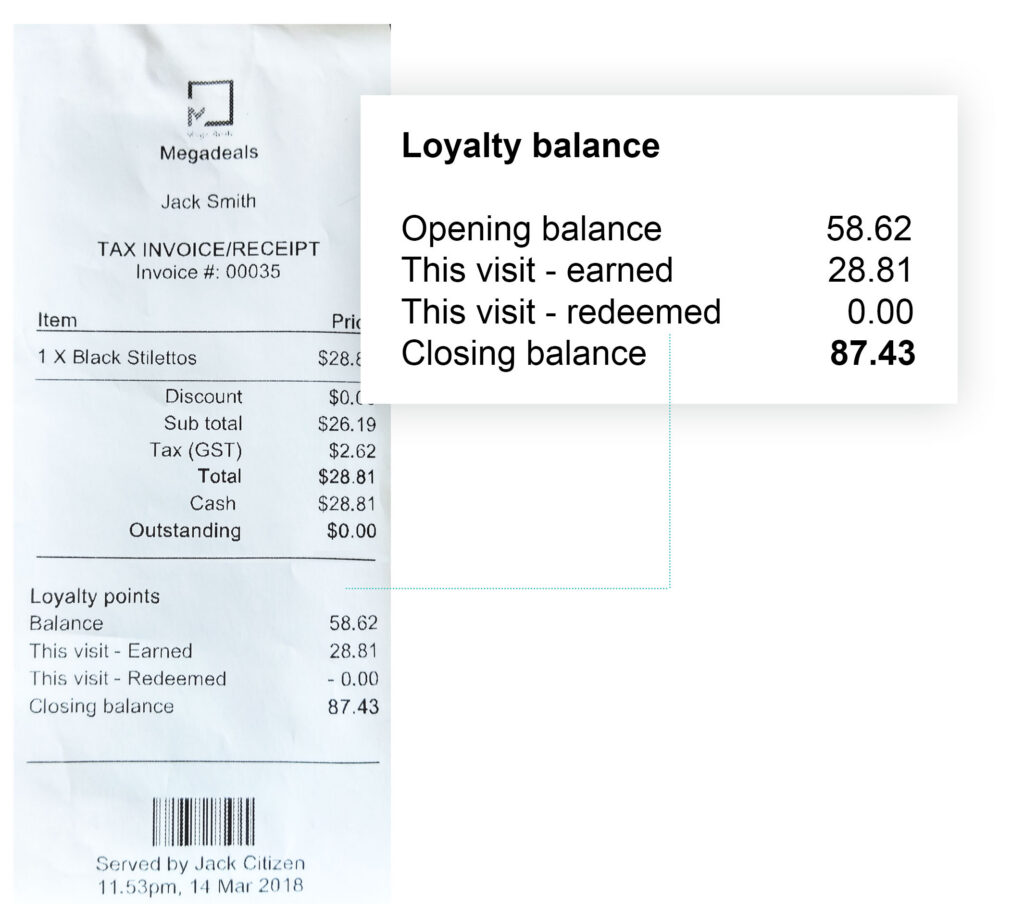
Show loyalty points balance on receipt
Delight your customers on every visit by showing loyalty points balance and increment on receipt. The loyalty summary on receipt will include starting balance, points earned this visit, points used this visit and closing balance.
To activate/deactivate loyalty balance print on receipt, go to Store Setup > Receipt Templates > Select relevant receipt template and click on ‘Show loyalty points on receipt’.
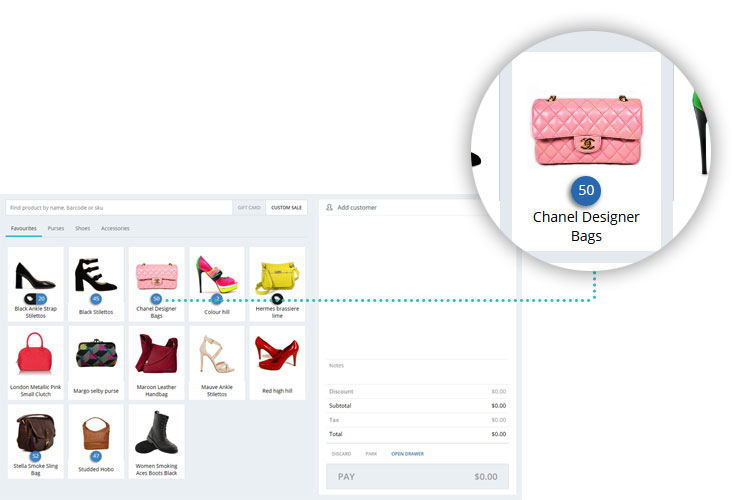
Inventory count for each item on POS screen
For inventoried items, view product inventory right on the POS screen. You no longer need to add item to the cart and then click on ‘Product info’ to learn about its current inventory level. For variant products, it will show the total quantity for all variants on the main screen. Click on the item to view variants and inventory count for each variant.
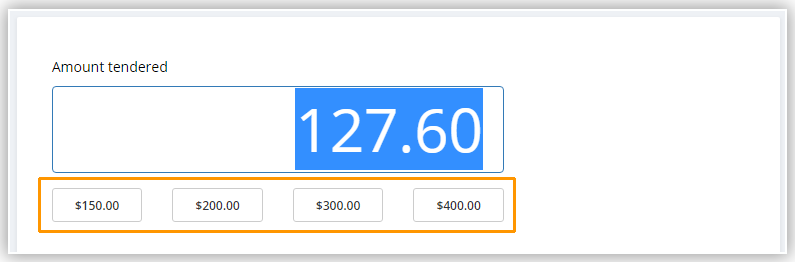
Quick cash option
On POS payment screen, Hike will show you quick cash options for tendered amount based on outstanding amount. E.g.: If customer is to pay $32.50, the exact amount will be in the ‘tendered amount’ box followed by 4 other likely amount options such as $40, $50…etcetera. If customer pays any of these amounts, simply click on it to select that as tendered amount.
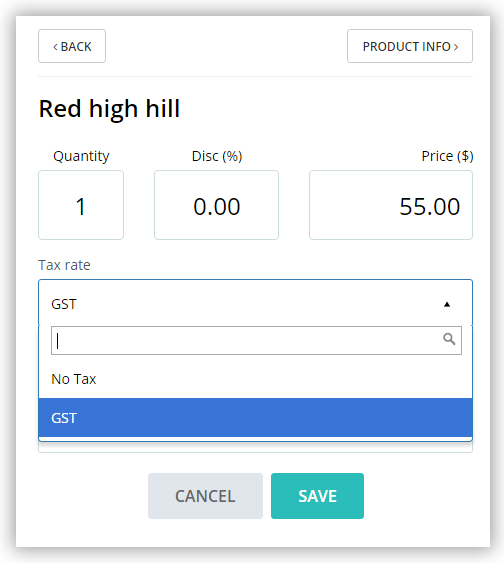
Change tax type for any item added to the cart
From time to time you may need to alter or remove applicable tax for specific items added to cart. This change will get applied for that specific sale only and won’t affect the normal pricing and tax structure for that product. This feature may come handy in scenarios such as customer’s geographic location or other factors exempt them from paying local taxes on certain products.