
Update: May 2019

In this update:
- Buy now pay later with integrated Zip Pay
- Plus more integrated card payments coming soon
- Sell & track items with serial numbers
- Option to add Skip count in current Avery label printing
- Custom prefix and suffix for transaction reference IDs
- Improved historical data relating to register summaries
- Omit gift cards + parked sales from sales reports
- Ability to add customers while offline
- New option to print SKU on sales receipt
- Print on receipt the total number of items in cart (sale).
- Added: more useful insights in cash register summary.
- Improvement for Hike generated emails
- Import label print list using Hike label print CSV
- Retail price column added for product list view
- Denominations selection and cash counting for opening float
- Improved insights for open purchase orders list
- Option to send AR statement by email
- Most Hike generated emails are now editable email templates.
- Option to combine multi-outlet inventory for Woo and BigCommerce
Hey Australia! give your customers the power to pay later, interest free and watch your sales grow
      <li></li>
      <li></li>
    </ul></div>
We’re thrilled to announce that Hike and Zip have teamed up to provide a seamless, interest free payment solution for your customers, allowing your business to benefit from:
- Increased sales volume
- Increased average order values
- Increased customer repurchases
Now with a seamless integration of Hike and Zip payments, you can offer your customers the option to ‘Buy Now, Pay Later’.
New to Zip? Click here to enquire.
More integrated card payments for Hike users around the globe coming soon!
      <li></li>
      <li></li>
    </ul></div>
As part of our goal to remain payment agnostic, we’re always looking for good payment options to integrate with. We’re so thrilled to announce that we’ve commenced integration development for following payment options, to be launched in coming weeks:
- TD Bank (Canada)
- Verifone Paymark (New Zealand)
- Evo Payments (USA)
- PayJunction (USA)
- North American Bankcard (USA)

Sell & track items with serial numbers
- Available on One Store & Multi-store plans
      <li></li>
      <li></li>
    </ul>
One of the biggest features in this update is the ‘Serial number’ support. Now you can sell and track serial numbered products using Hike! This will make things like warranty and record keeping easier. For example, if you sell electronics, you may want to track the serial numbers for the purpose of warranty. However, if you’re a mobile phone seller, you may want to record associated EMEI number of each phone sold by you and the serial number feature can help with that.
Activating serial numbers for a product is super easy in Hike:
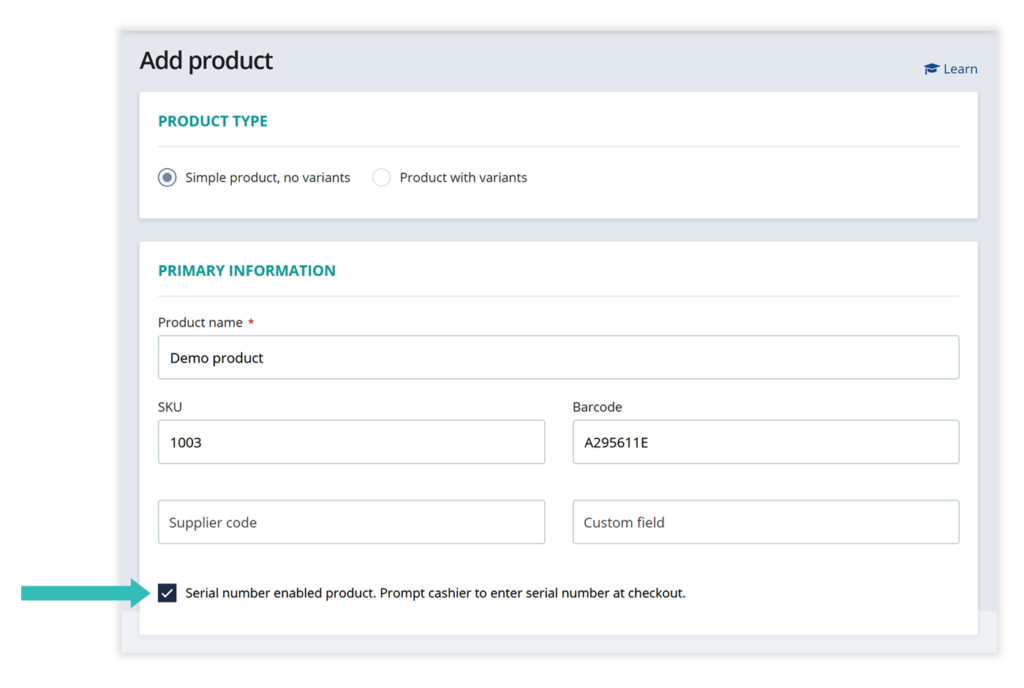
1. When you are creating a new product in hike, you can activate serial number logging for that product by simply checking a box that reads ‘Serial number enabled product. Prompt cashier to enter serial number at checkout’. The checkbox is located right under the supplier code field within the ‘Primary information’ section of a product. Please note, if this box is unchecked, it means that the serial number tracking is disabled for a product. You will need to individually activate this option for each product you require to associate serial number at checkout.
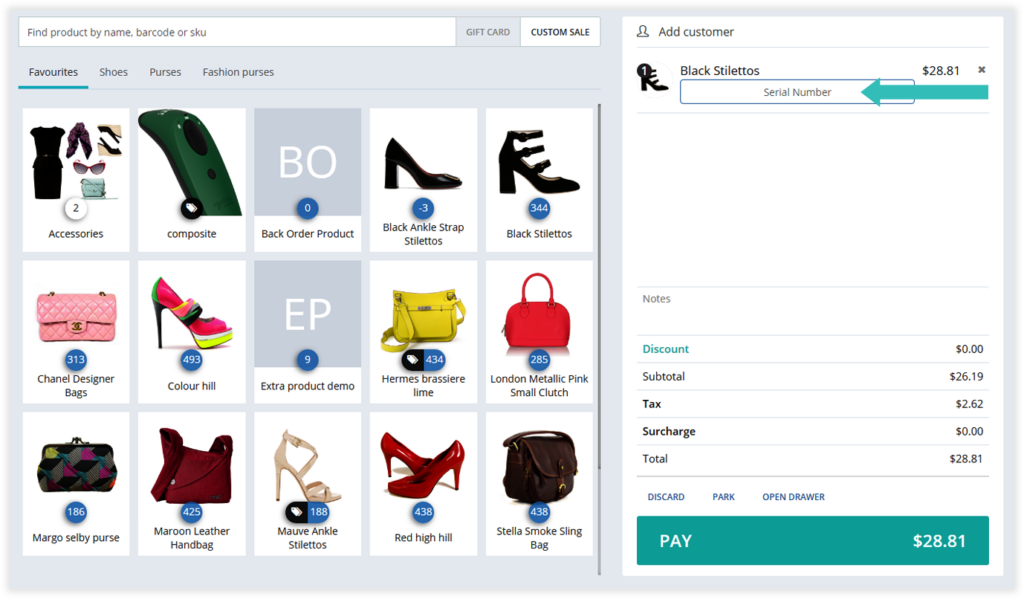
2. Once serial number is activated for a product, Hike will always prompt to enter serial number for the product when it is added to cart. If you add multiple quantity of a same item, normally Hike groups them as one-line item and increase quantity count. However, for a serial numbered product, only one quantity per line item are added so you can separately enter serial number for each item added in cart. As shown below, serial number entry text box is presented under product name.
Please note, if a serial number product/s are in cart, you will not be able to continue to the payment page until serial number is provided for each of the item/s. As shown in
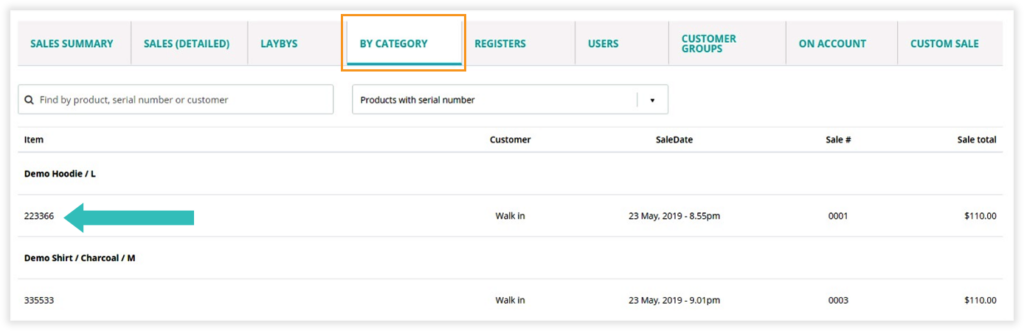
3. Tracking serial numbered products with sales report. To track sales date, associated customer or other relevant information for a serial numbered product, go to sales reports and click on ‘By category’ option. Here you will be able to filter the report to show only serial number product sales.
Option to add Skip count in current Avery label printing
      <li></li>
      <li></li>
    </ul></div>
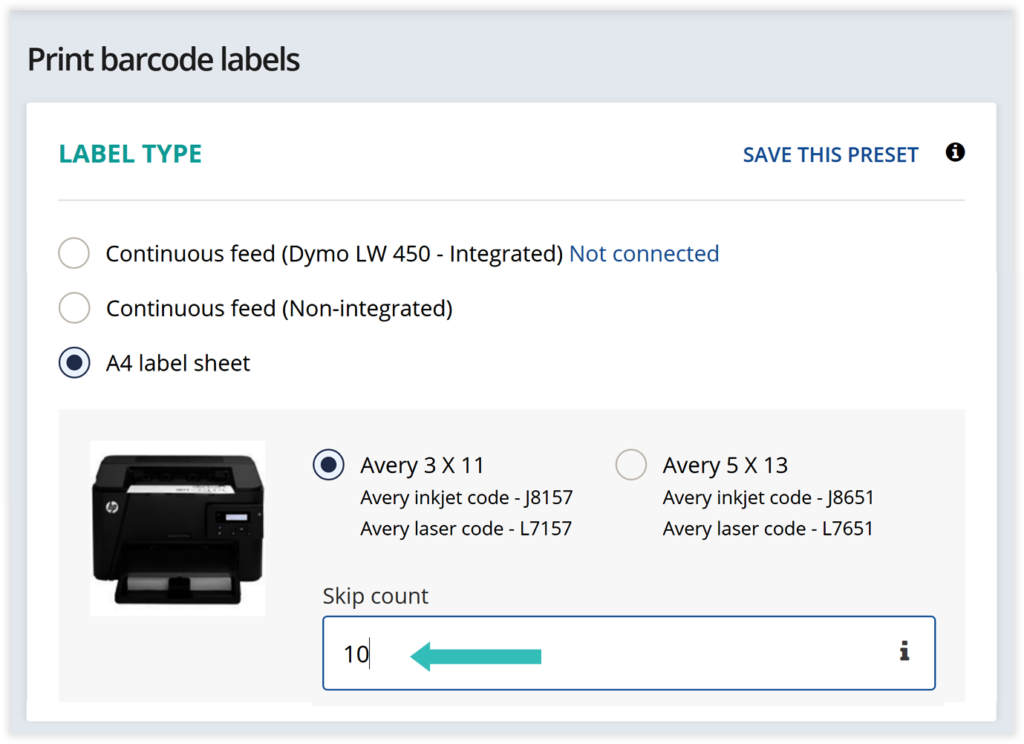
It’s a tiny yet very important feature helping you save money and environment at the same time! You can now re-use partially printed Avery label sheets by providing skip count. When you provide skip count when printing labels on Avery sheets, Hike will skip first few labels as per your instructions and start printing from the next label number. For example, if you have an Avery label sheet with 10 labels already printed, add 10 in the skip count value when you re-use the sheet so Hike will remember to start printing from 11th.
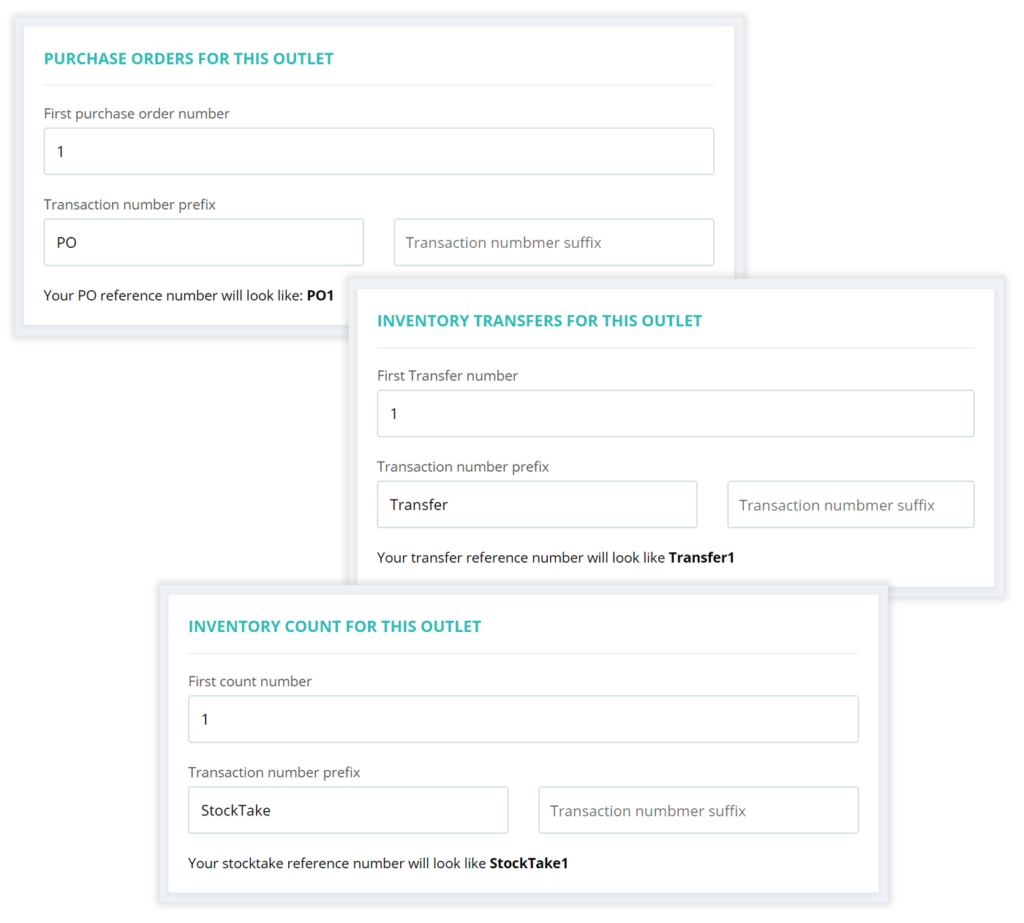
Custom prefix and suffix for purchase orders, transfers and inventory count reference numbers.
You’re going to love this new feature if you currently record purchase orders, transfers and inventory counts in multiple systems including Hike. Here is why: if you have Xero or QuickBooks Online integrated with Hike, your accounting software will show all purchase orders in one whether they were created in Hike, Xero or Shopify. With custom prefix and suffix, you can make your Hike transactions easily identifiable in these lists.
You can apply custom prefix/suffix for purchase orders, transactions and inventory count by going to: Store setup -> Outlet and register -> Click on outlet name. These setups are applicable by outlet so you can also set separate prefix and/or suffix.
Please note, for transfers, the system will use the prefix and suffix of source outlet.
PLUS: you can now also set the ‘start from’ number for these transactions.
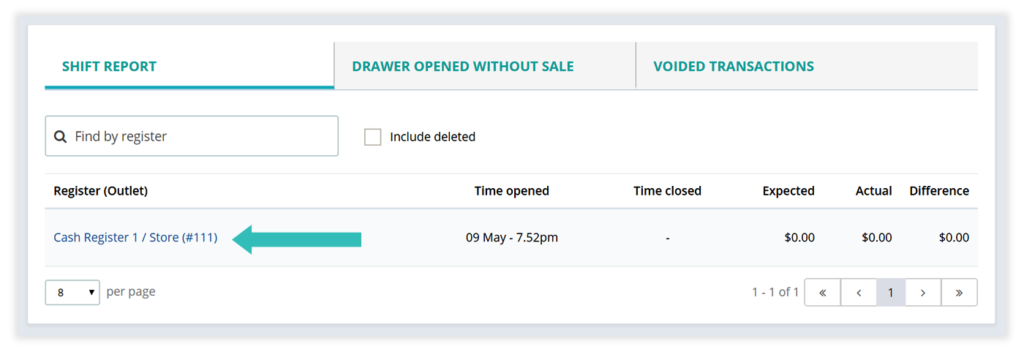
Improved historical data relating to register summaries
Previously, register closure summary for registers that are deleted did not include its register names because the register did not exist anymore. This functionality is improved so that historical data relating to deleted cash registers are saved with original register names.
Option to omit Gift card sales and parked orders from sales reports
- Available on One Store & Multi-store plans
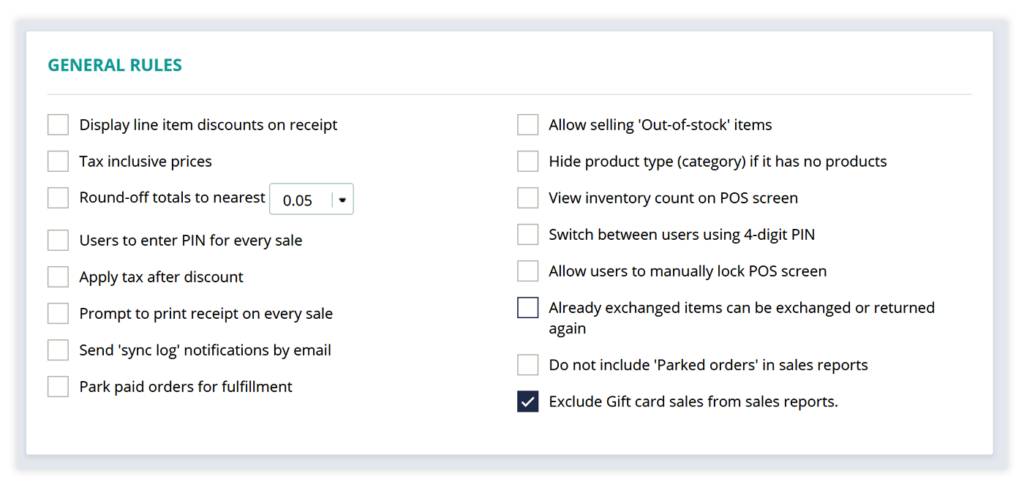
Depending on your business type and use case, you may wish to omit gift cards from appearing in sales reports as revenue and the same applies for parked orders. In general, retail businesses treat gift card sales as liability until card values are redeemed by customers. However, some of our customers who sell services prefer to recognize gift card sales as ‘revenue’ as soon as they are sold.
To ensure we address the needs of both worlds, now there are options within general settings to omit gift cards and parked orders from sales reports.
To apply these settings, go to General Settings > scroll down to ‘GENERAL RULES’
Ability to add customers while offline
        <li></li>
        <li></li>
      </ul>
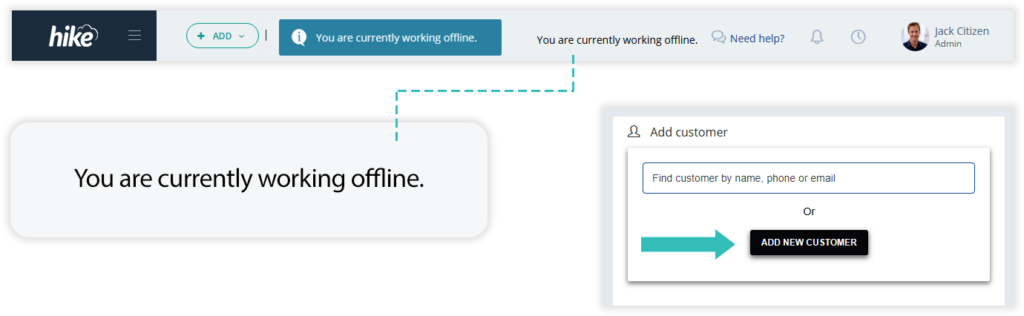
Now Hike lets you add new customers to the customer directory even when operating offline.
Please note, while in offline mode, your device will not be in connection with your store cloud and hence it may not always have the most real-time updated data. For these reasons, some limitations are applied around this functionality for safekeeping of your data: 1) when creating or editing a customer profile in offline mode, options like account balance and loyalty will not be accessible. 2) The newly created customer profile in offline mode will properly associate with its sale only once the customer profile is synced to your store’s cloud online. 3) Please do not delete your browser’s history before your device has already sync’d all the data with your store’s cloud. Deleting the history prior to online sync may remove your store’s local database which in turn will delete the offline transactions and newly created customer profiles.
New option to print SKU on sales receipt
- Available on One Store & Multi-store plans
        <li></li>
        <li></li>
      </ul>
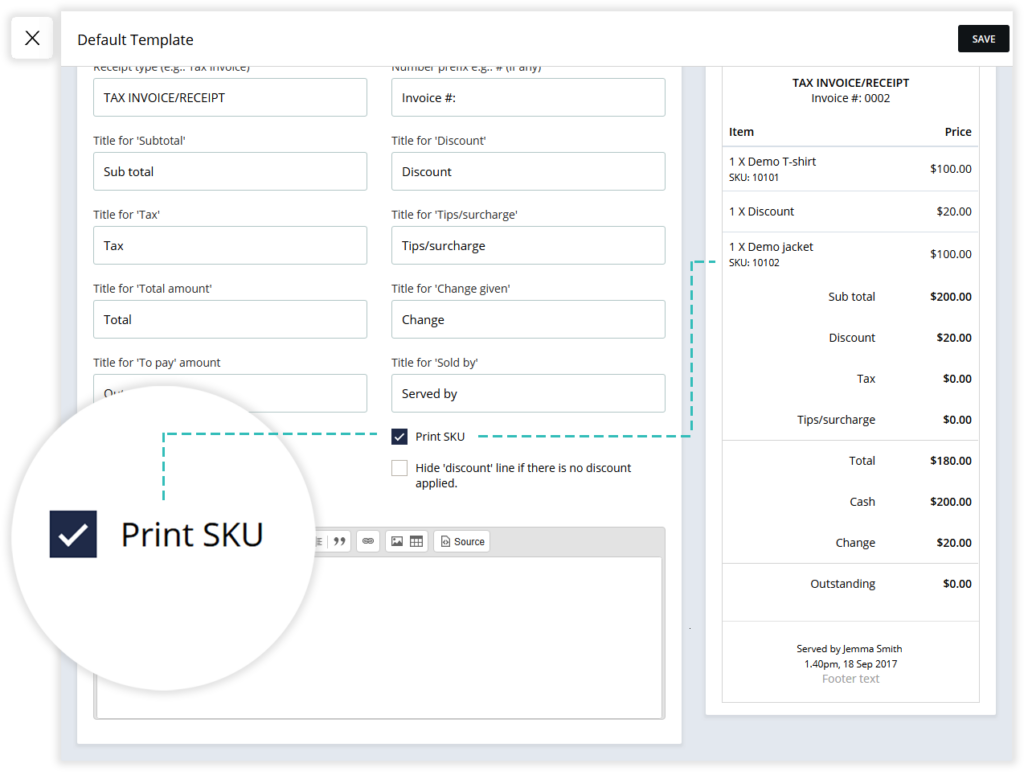
You can now include product SKU number on customer tax invoice / receipt. If activated, the SKU number is printed for each line item and displayed under item name.
To activate this option, go to: Store setup -> Receipt template-> Check box ‘Print SKU’.
Added: more useful insights in cash register summary.
        <li></li>
        <li></li>
      </ul>
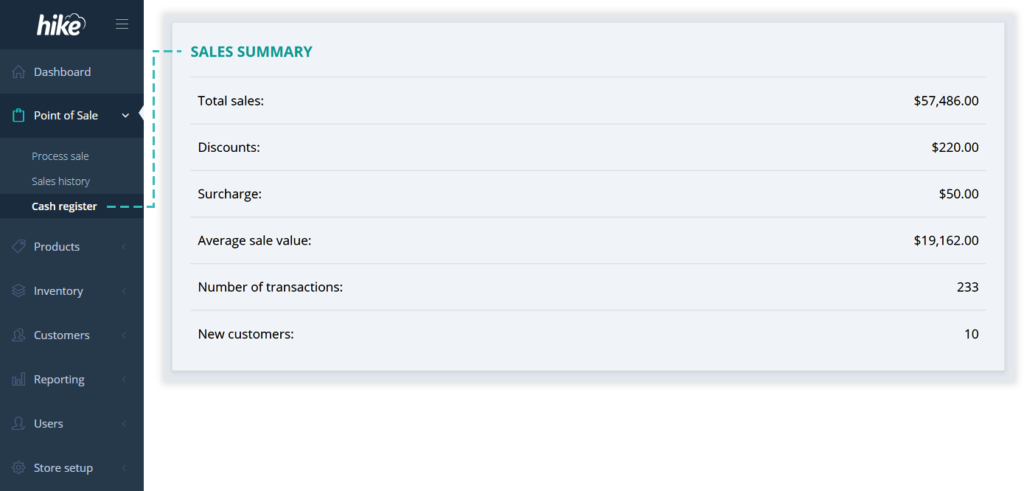
Information is king. Indeed! Sales summary in your cash register closure report now also features:
- New customers,
- Number of transactions; and
- Average sale value.
Print on receipt the total number of items in cart (sale).
- Available on One Store & Multi-store plans
        <li></li>
        <li></li>
      </ul>
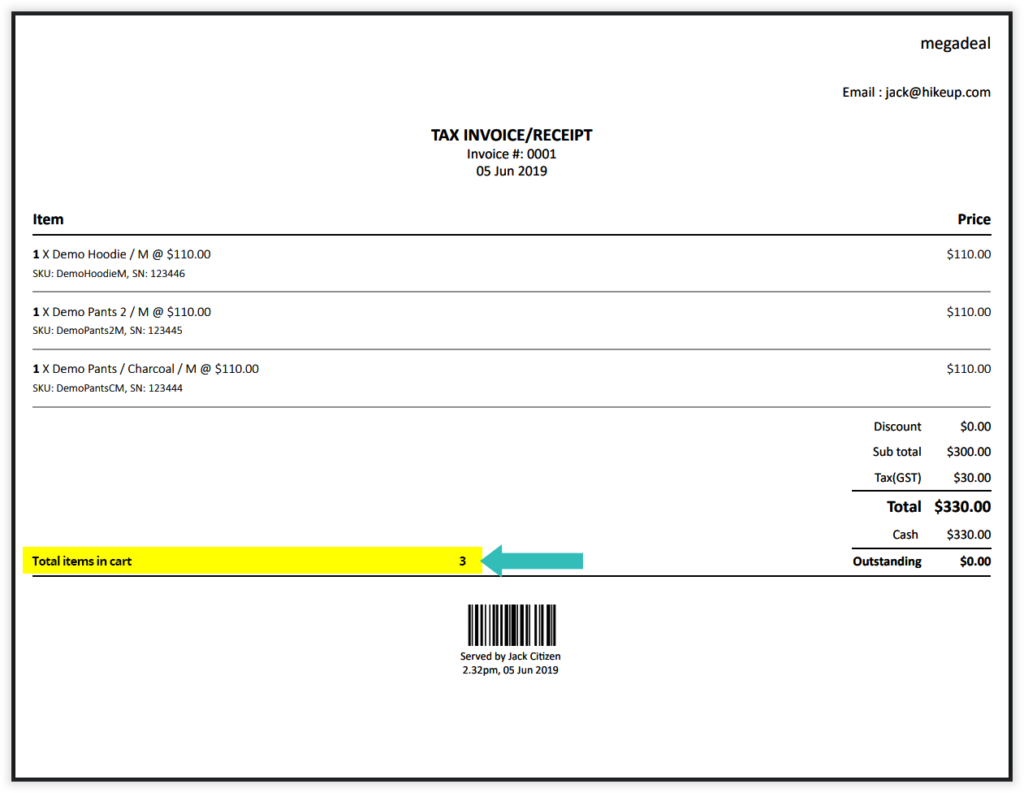
This new feature allows you to print total of all line item quantities on receipt. Edit receipt template settings to turn this feature on or off.
Duplicate (copy) a receipt template in Hike
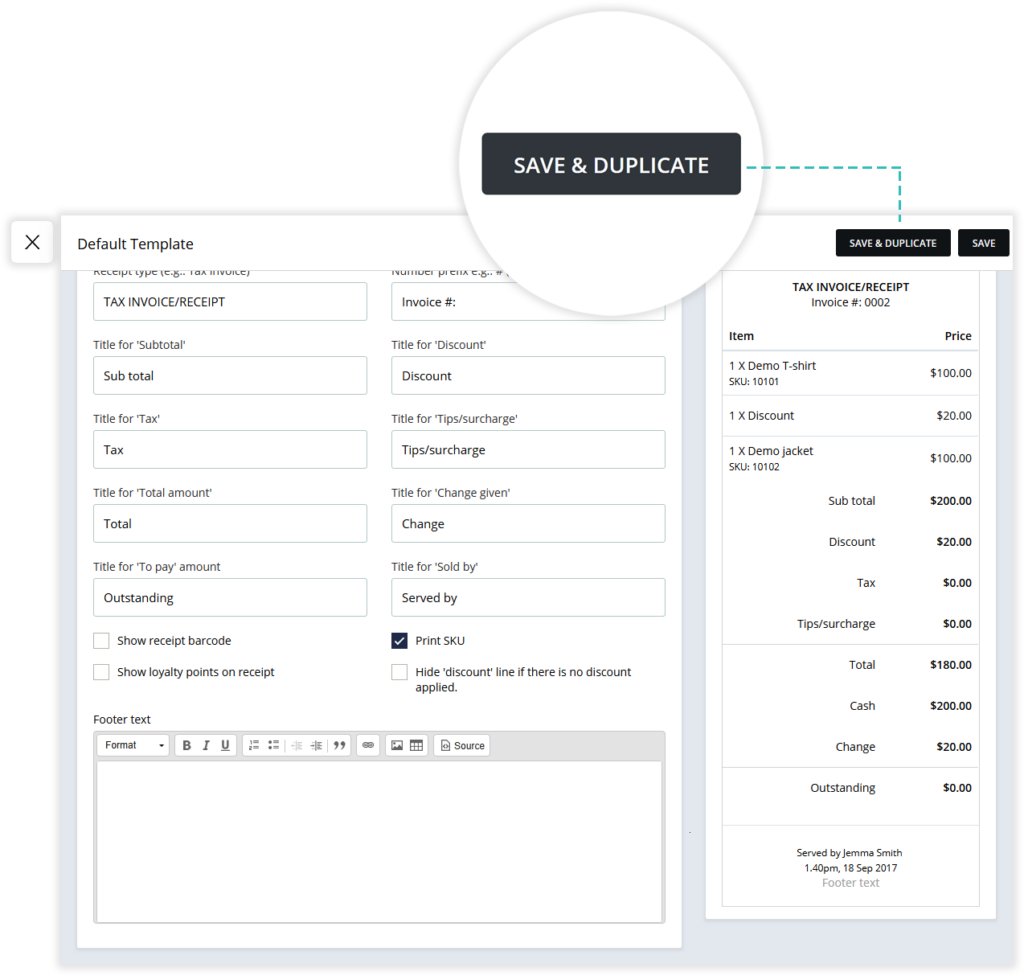
When creating a new receipt template, sometimes it just makes sense to duplicate an existing template rather than having to type it all over again.
Aside from this being a great time-saving mechanism, it can also save you a headache from making mistakes. Making a copy of an existing receipt template to tool around with can be great if you need to decide between two versions of a receipt.
Once you duplicate a receipt template, you may only need to tweak the name and link it with cash registers as needed.
Improvement: Emails from Hike are now going to be sent with your store name and email. Replies to your email address.
Currently when you send customer receipt or supplier PO emails directly from your Hike account, those emails are sent using Hike’s email address. This feature is improved so that your customers will know that Hike is sending this email on your behalf. In ‘From’ email it will appear that Hike is sending the email ‘on-behalf-of’ you. Any direct replies to the email will get delivered to your email inbox.
Please note: For the purpose of this functionality, we’ll be using the email address of your Hike account owner. If you’re unsure which email is used, please go to Store Setup > My Account. The account owner email there is the one which we’ll be using.
Send account statements to customer by email directly from Hike
- Available on One Store & Multi-store plans
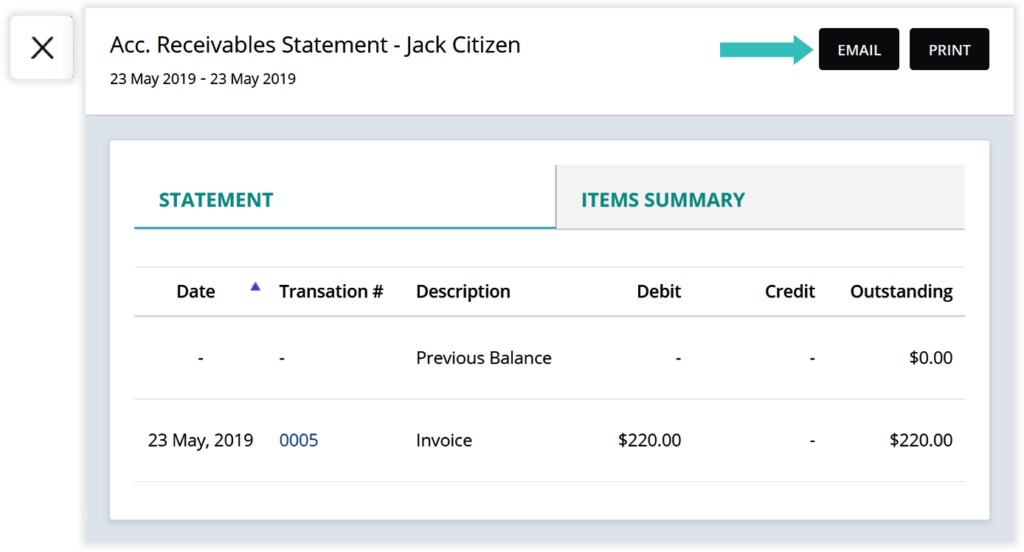
Let’s do our bit for the environment, one A4 at a time. Now with ‘Email’ option for accounts receivable (AR) statements, you can email individual customers their AR statements directly from Hike.
When you click on the email button on AR screen, Hike will send statement to the customer by emailing to default email address on their customer file.
If there is no email address on customer file, Hike will prompt you to enter the recipient email. The email you enter here will also get linked to the customer profile so next time you won’t need to enter it manually.
The AR statement report is accessible from Reporting > Customers > Acc. Receivables Statement
Import label print list using Hike label print CSV
- Available on One Store & Multi-store plans
        <li></li>
        <li></li>
      </ul>
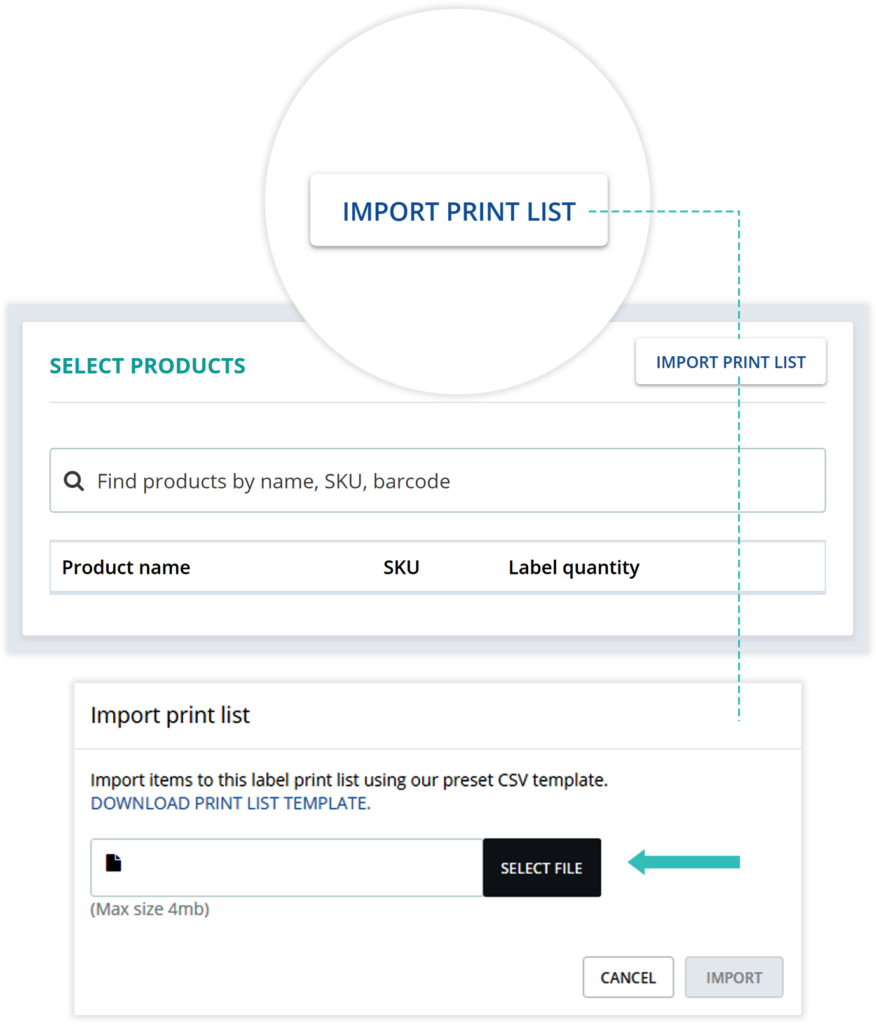
Now you can import label print list in Hike. Hike already lets you select and add products to print list, then what’s the point of this import feature, you may wonder. Well, technically it does the same thing. However, if you have 100s of products for which you want to print labels, adding each product to print list manually and then defining quantity for each may be a bit time consuming. Instead, option to quickly add quantity for items in a CSV may work as a lighting fast alternative.
This new feature may be useful for you when creating labels for 100s of products in one list and/or labels for a same list of products are printed on regular basis.
How to:
- Click n IMPORT PRINT LIST
- Download label print CSV template
- Enter SKU, print quantity and product name (optional) in CSV for each product
- Save the CSV file on your computer
- Click on the same ‘IMPORT PRINT LIST’ button and then click ‘Select file’
- Upload your CSV file
You can also use manual product selection and CSV import simultaneously. If a same product is available in both, quantity selection will get summed up. E.g.: if a product that exists in your import list with quantity 5 is also selected in manual product search with quantity 10, Hike will print 15 labels for this product.
Retail price column added for product list view
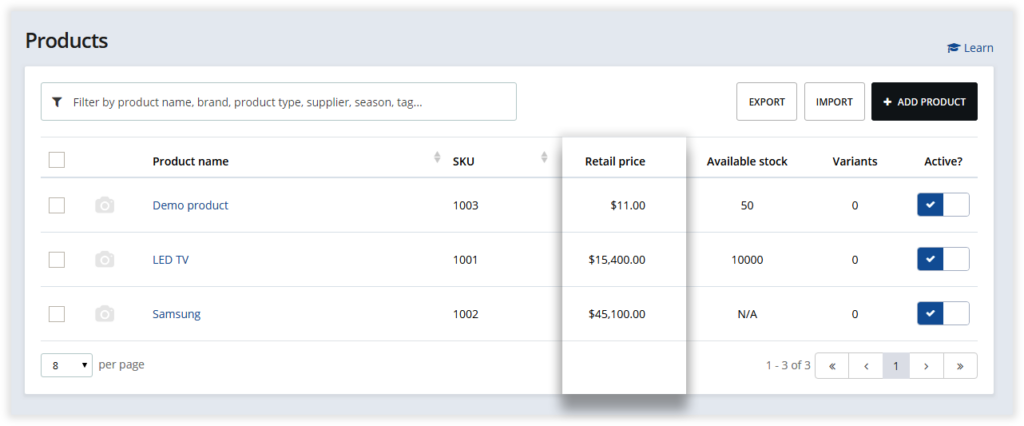
A new column ‘Retail price’ is now included in the product list view. If a variant product with different prices for each variant, Hike will show the least expensive variant price with prefix ‘From’.
Please note: In case of multiple outlets, Hike will always display the lowest retail price.
Denominations selection and cash counting for opening float
        <li></li>
        <li></li>
      </ul>
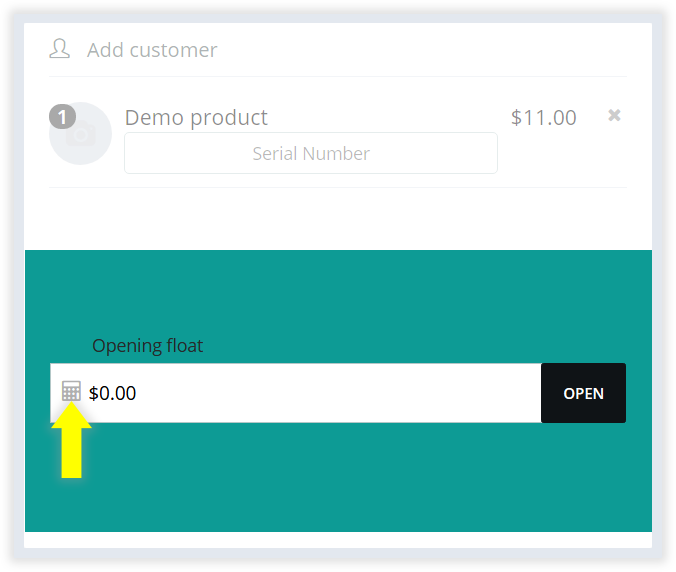
When entering your opening float, until now you were adding total float amount e.g.: $200. This update includes denomination and cash counting option so that you can now enter how many notes and coins of each denominations are there in the float and Hike will calculate the total for you. E.g.: 5 of $20 notes and 10 of $10 notes.
Please note, denomination selector was already there for register closure summary. With this update, the feature is also available for opening float.
Improved insights for open purchase orders list
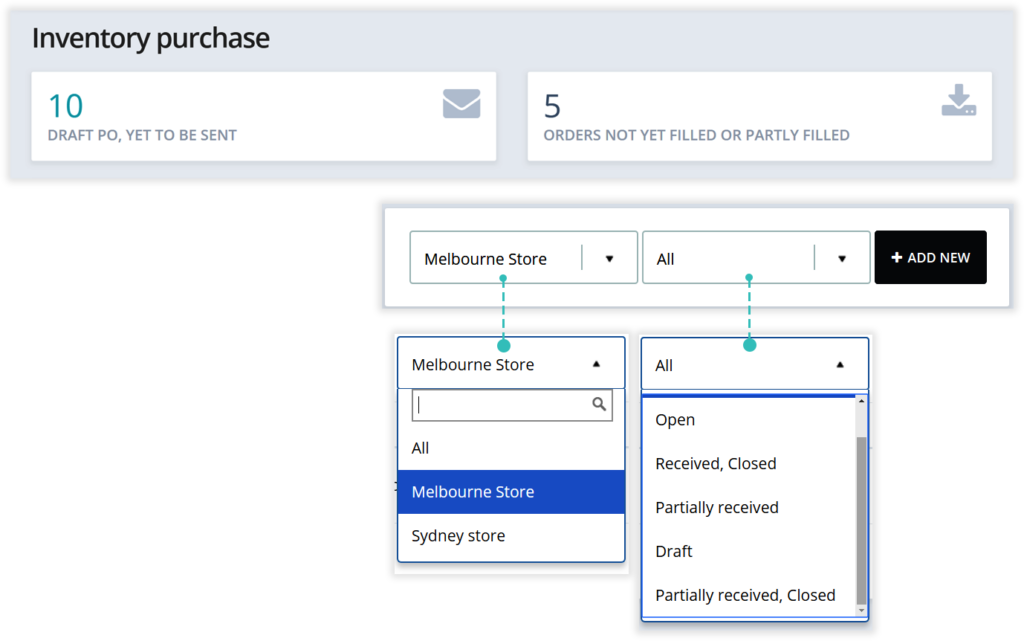
Seeing is believing and in this case ‘reminding’. We’ve added new information portlets on purchase orders list page to remind you about POs that are: 1) Yet to be sent and; 2) POs awaiting fulfilment and partially filled.
So, there is on less thing you need to remember because Hike will keep reminding you about it (all the time).
Also…
There are two new list view filters added for your PO list page which lets you filter purchase orders by: 1) Outlet and; 2) PO status
Go shine…be creative! Most Hike generated emails are now editable email templates.
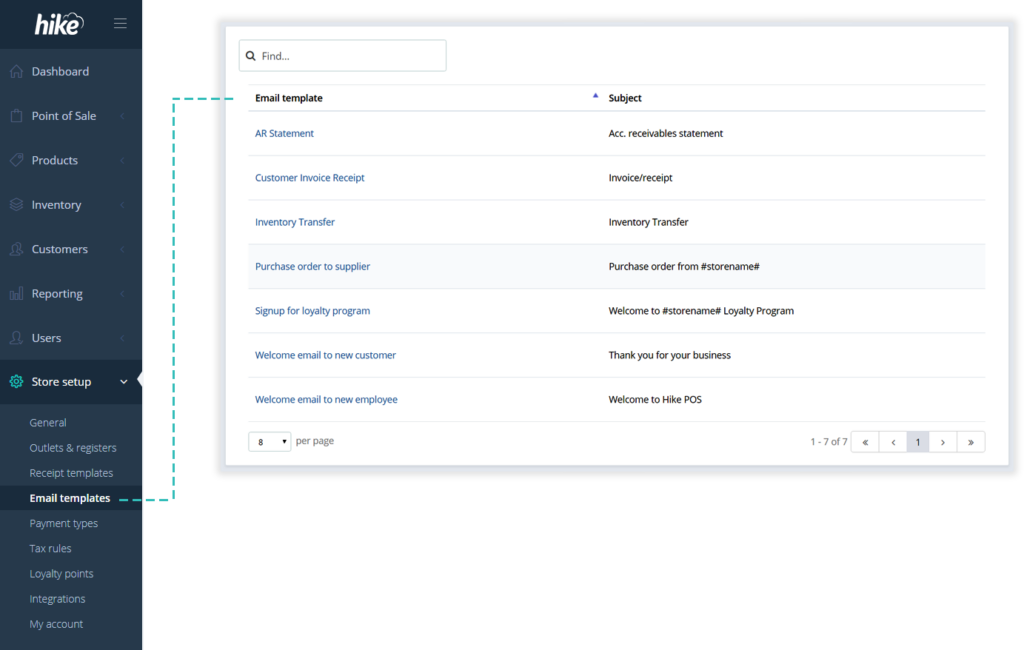
In store setup, we’ve added a new section ‘Email templates’ and it includes 7 editable email templates relating to the emails sent from Hike to your customers / suppliers / team.
The welcome email templates for loyalty signup and new customer account are existing email templates that we moved from their respective sections to this new template page. However, all other templates are new. We’ve added basic and minimal template wordings for you so please feel free to edit those. Be creative!
To edit any of these templates, simply go to Store setup > Email templates and click on a name of the template you wish to edit.
Woohoo! Now you can link combined inventory from all your outlets to your eCommerce store.
<ul class="avail-icons">
            <li>Available on Multi-store plans</li>
            <li class="iPad"><img class="ipad" title="" src="https://hikeup.com/wp-content/uploads/2024/09/ipad-strip-v2.png" alt="iPad"></li>
            <li class="pc"><img class="pc" title="PC" src="https://hikeup.com/wp-content/uploads/2024/09/pc-strip-v2.png" alt="PC"></li>
            <li class="mac"><img class="mac" title="Mac" src="https://hikeup.com/wp-content/uploads/2024/09/mac-strip-v2.png" alt="Mac"></li>
          </ul>
Last month we released this feature for Hike retailers using Shopify for their online sales. Now this feature is also available for retailers selling online using:
- BigCommerce and;
- WooCommerce.
How does it work? You may ask…
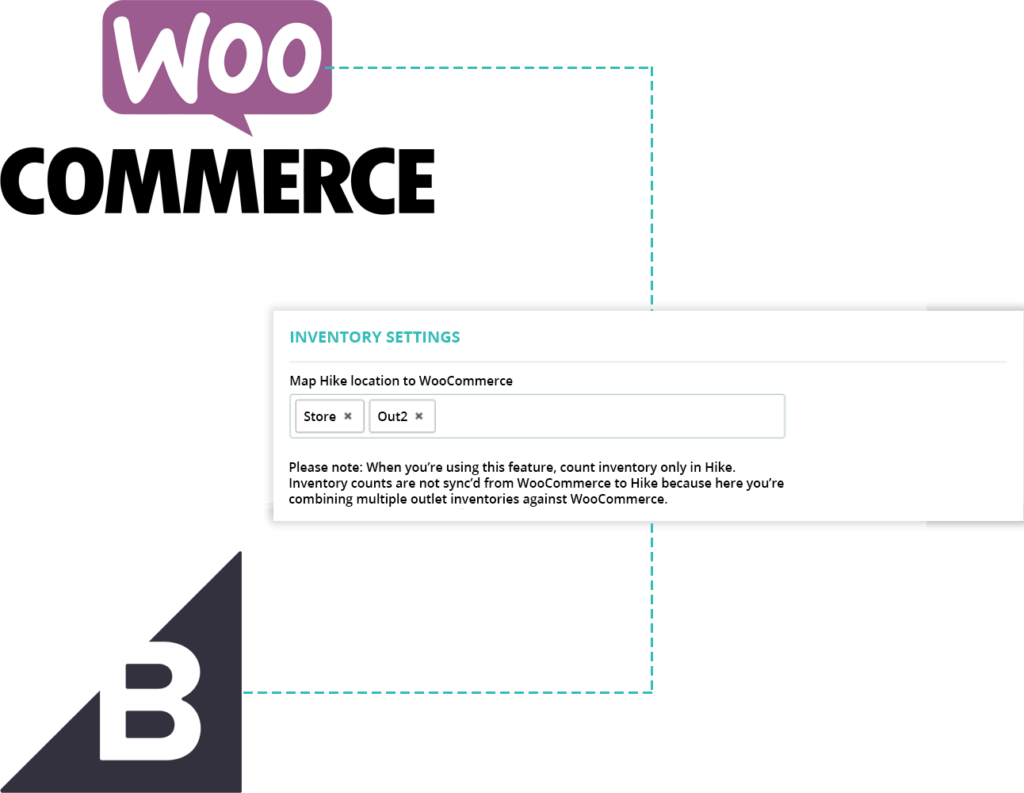
This feature lets you display combined inventory form all your outlets on your eCommerce store. This way, you won’t miss out on a customer order just because your designated fulfilment store did not have an item in stock.
So, with ability to display online the total inventory from all outlets, you can keep accepting online orders for an item as long as it is available at one of the locations, even if it is out of stock at the fulfilment outlet.
Now, when you receive an order and the item is not available at your fulfilment outlet, you simply need to dispatch the item from one of your other outlets.
To keep things in order, generate a transfer order from source outlet to the fulfilment outlet when you send the item to the customer. Now mark the item in sales history as sent. This way, your fulfilment outlet inventory for the item will remain correct.
Ready to get started with Hike?
Try Hike free for 14 days. Instant access, no credit card, no risk.
- 14-day free trial
- No credit card
- Cancel anytime