Update: November 2018

Update: November 2018

Going places. Supporting more languages

Hike is now loved and used in more than 40 countries, So, we’re constantly working on adding to the list of Hike supported languages. With this new release, Hike is now available in 4 new languages. Your Hike point of sale is available in more languages and regions than most other POS software out there!

EnglishSimplified Chinese
English (USA)Traditional Chinese
Arabic (Kuwait)Japanese
ArabicGerman
VietnameseSwahili / Kiswahili

Support for new region-specific formats

Just like language support, our development team is constantly working to provide you with options & features that are specific to your region.

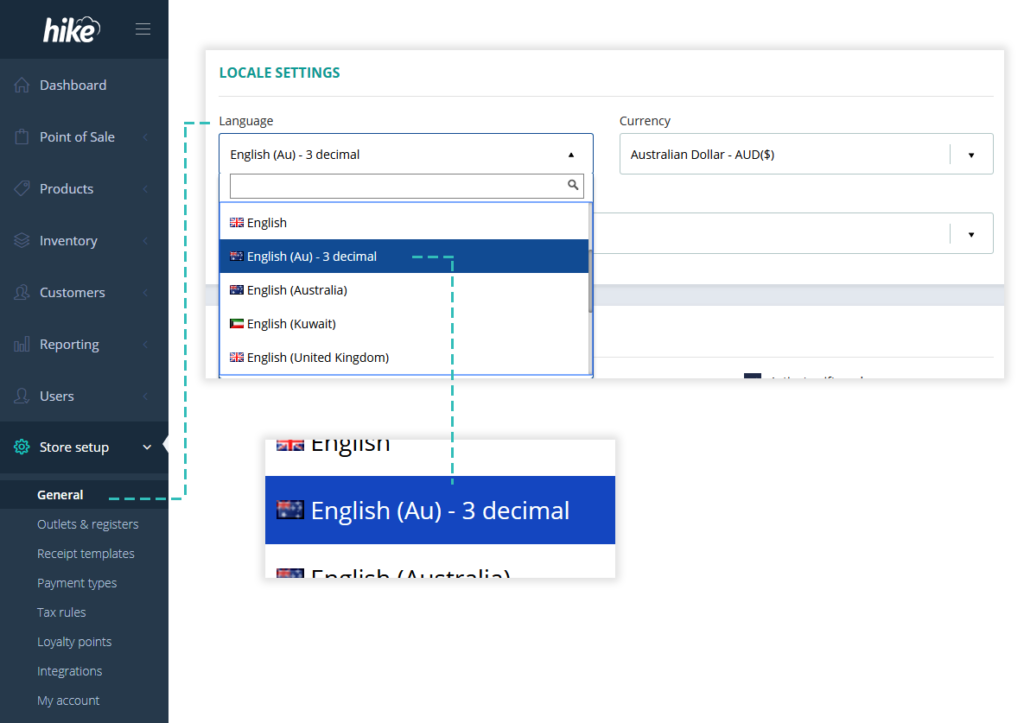
Support for 3 decimal pricing (E.g.: $3.580)

You can now activate 3 decimal pricing for your store. It is a niche requirement so not for everyone but hey it makes your business future proof. Should you ever decide to accept Bitcoin or other crypto alt-coins, this feature will surely come in handy.

To activate 3-decimal pricing, go to Store setup > General settings to active this feature.

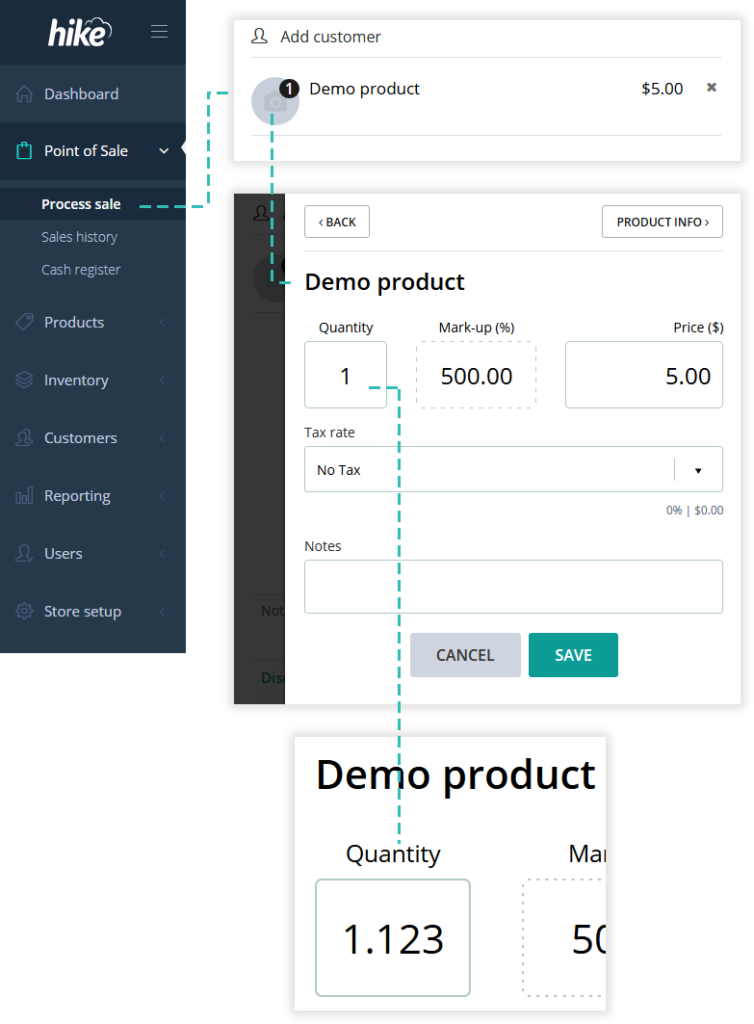
Support for 4 decimal quantity (E.g.: 3.257)

2-decimal quantity support was introduced in the previous update. With this update, product quantity can now support up to 4 decimals. To use this, you do not need to make any changes at your end. Hike will accept decimal quantity as entered with up to 4 decimals.

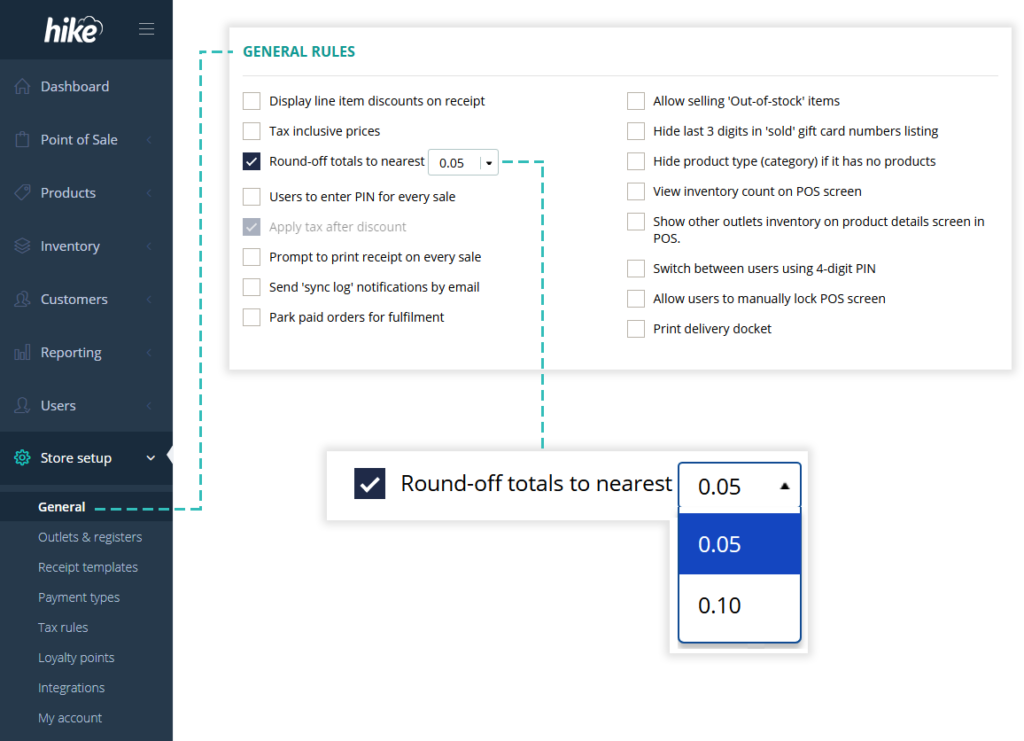
10c rounding option

Hike already has nearest 5c rounding available. Now, you also have the nearest 10c rounding option. To activate this, go to General settings and check the box for rounding. This by default selects 5c rounding for you. You can use the dropdown toggle to change it to 10c.

Scale faster with Hike APIs

We’re pleased to announce Hike APIs are now officially made public. APIs are what make it possible to move information between programs. For example, the integration between Hike and QuickBooks Online is developed by making Hike APIs talking to QuickBooks Online APIs.

Now that Hike APIs are public, you can get your own public/private apps created for Hike. Connect any third-party app to automatically receive information from or send to Hike. With this, you can have your external catalog database connected to Hike to receive new products or simply connect your custom-built eCommerce app with Hike. It’s all possible with Hike’s open APIs.

This is what you can send and receive to/from Hike:

Your Hike integration app will be able to make API calls for Hike sales, customers, suppliers, inventory, products, gift cards and more.

Available on all Hike subscription plans

Hike POS APIs are available to users on all subscription plans including ‘Start-up’ plan.

Pre-requisite for using Hike APIs

You’d require knowledge and expertise in API development and oAuth authentication process to make use of Hike APIs.

What kind of API development support will you get from Hike team?

We’ve a detailed API documentation available online at https://docs.hikeup.com. On this link you’ll find Hike API reference documentation as well as guides on ‘how to’ get started with Hike APIs.

Please note: we do not have an active phone/email support team for Hike APIs. Hike APIs are made available with an assumption that your development team is expert in Restful APIs and 0Auth authentication. Should you have any queries relating to these technology platforms, we encourage you to look those up online. There are plenty of good resources available online. That said, if there is a specific question about Hike API endpoints, we’ll be more than happy to help your development team.

Unlock stock count items for sales before finalizing full count

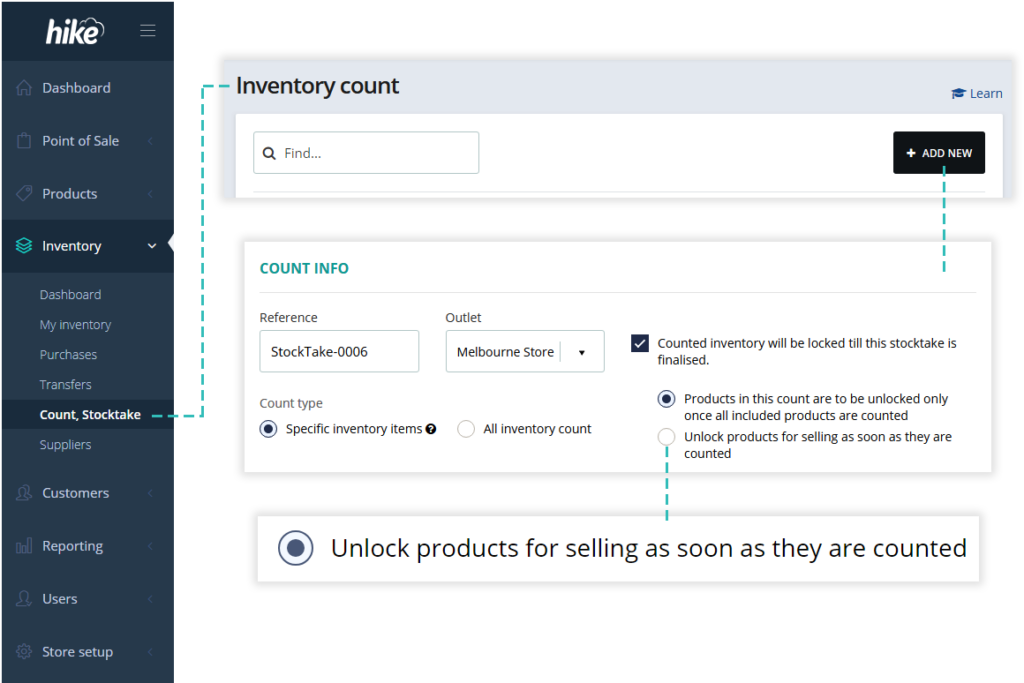
By default, when you are running a stock count, items included in the count are locked and cannot be sold. The reason being is that when you start a new count, Hike takes note of ‘on hand’ quantity. Movement in that quantity may impact the count accuracy and so items are locked till that inventory count is finalized. This is a normal, standard and accepted thing for POS software.

However, this may mean a wait of couple of days before you can sell those items. Hike helps you ease the process by allowing you to unlock each individual item as it is counted. So, you do not have to wait for the full count to complete. If you’re half way into the count, at least 50% of your items are already released for the sale.

Inventory count tip: Count one product category or single supplier items at a time to ensure the inventory count impact is minimal on your store sales.

Purchase order due date for Xero accounting software sync

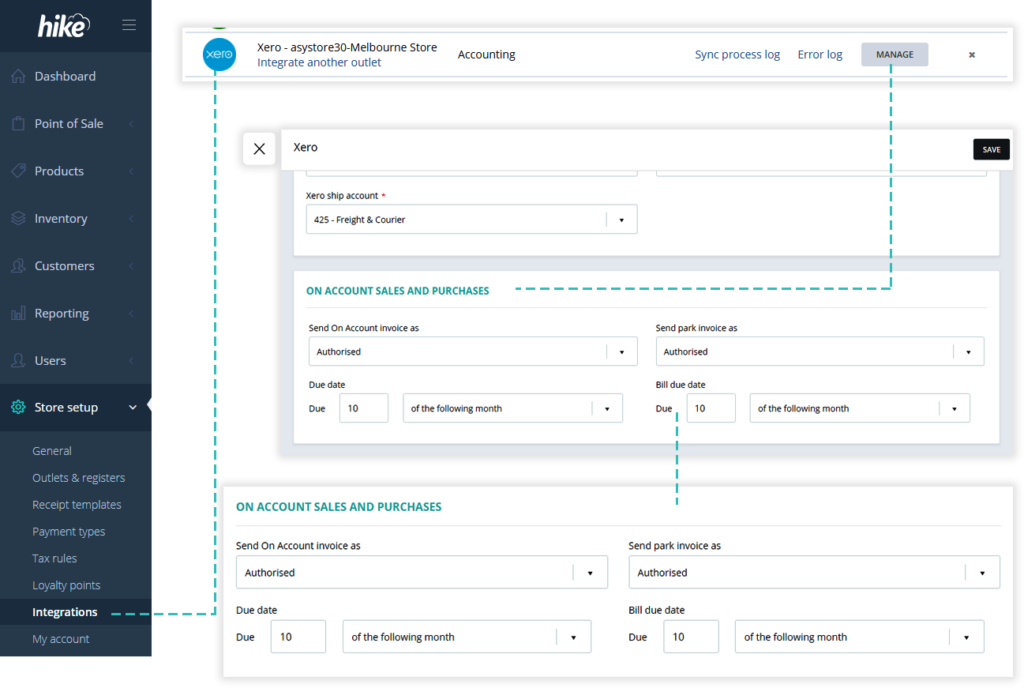
Hike seamlessly integrates various data with Xero accounting software including purchase orders. Now you’ll be able to set a due date for PO sent from Hike to Xero. The available options are:

  • (n)th day of the following month
  • (n)th day of the current month
  • (n) days after the invoice date
  • (n) days after the end of the invoice month

Please note: Your current settings are not changed automatically. So, if you are happy with the way it is, there is no action required on your part.

Marketing consent information sync with MailChimp

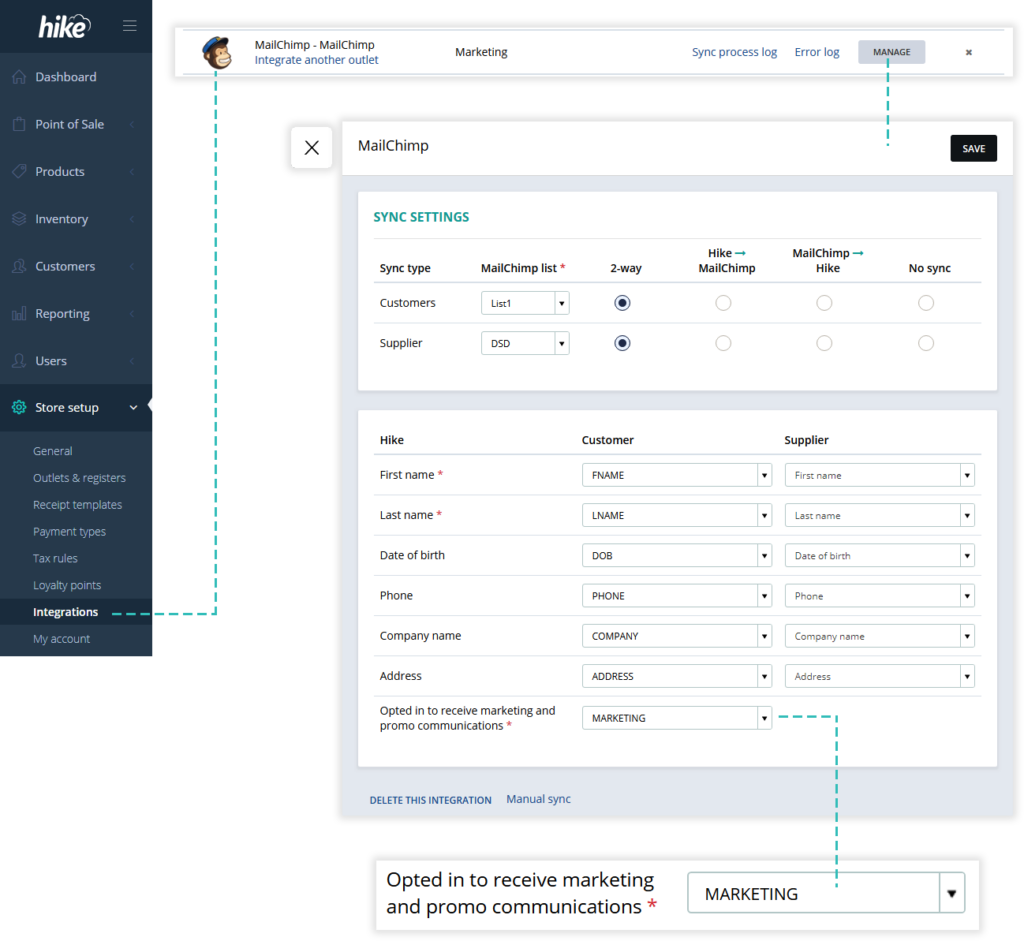
If you’ve activated Hike point of sale integration for MailChimp, all your suppliers and customer details are automatically sync’d between your Hike and MailChimp accounts.

With this latest update, you can now also sync your customers’ preferences preference about marketing consent from Hike to MailChimp.

To activate this in MailChimp:
  1. Create a new data field for customer list in MailChimp
  2. Now in your Hike account, go to your MailChimp integration settings and map the newly added MailChimp field against ‘Marketing consent’
  3. Save your settings.

Please note: Use ‘Manual Sync’ to send existing customers’ marketing preference to MailChimp.

This feature will come in handy if you are running marketing campaigns directly from your MailChimp account.

Print delivery dockets
(One Store & Multi Store subscription plans only.)

Print delivery dockets for your customer orders.

Use Hike to process all your backorder deliveries and online orders (generated from integrated eCommerce and Amazon marketplace).

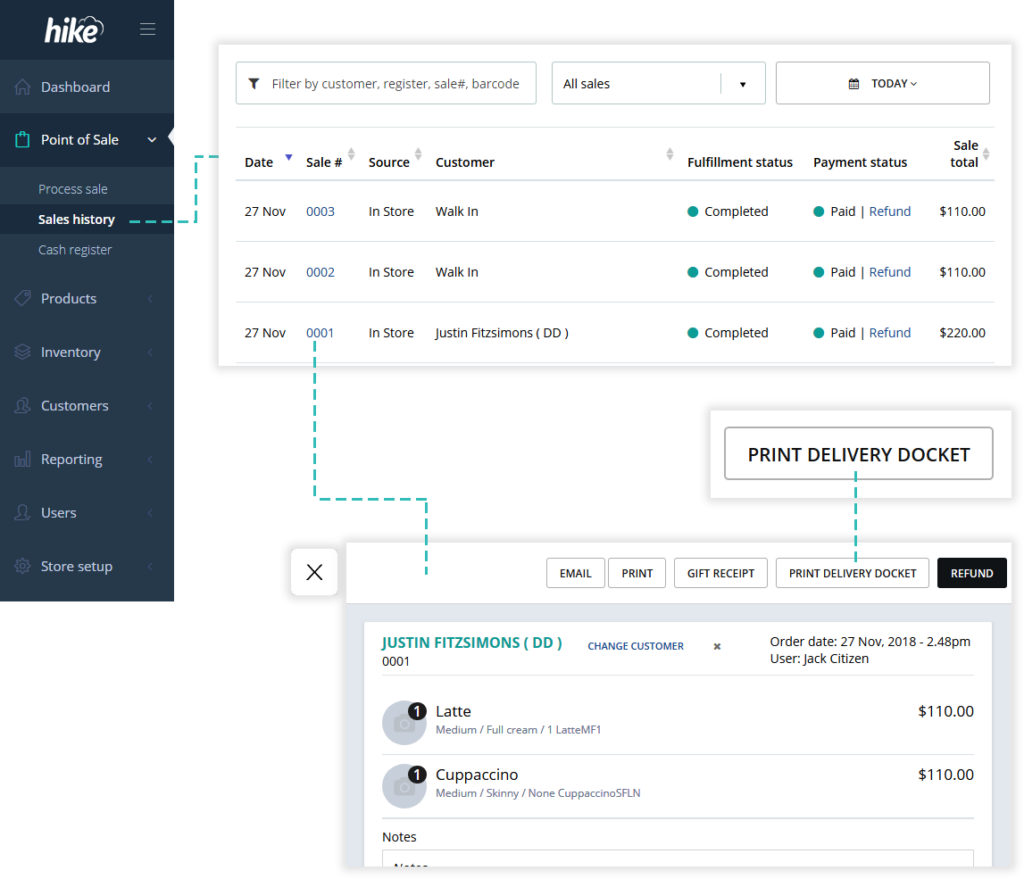
To print delivery docket for a sale:
  1. Go to Sales history and click on order line item
  2. This will slide open selected order’s detail view
  3. Click on ‘Print delivery docket’ button located in the top section
Import/export purchase orders (CSV)

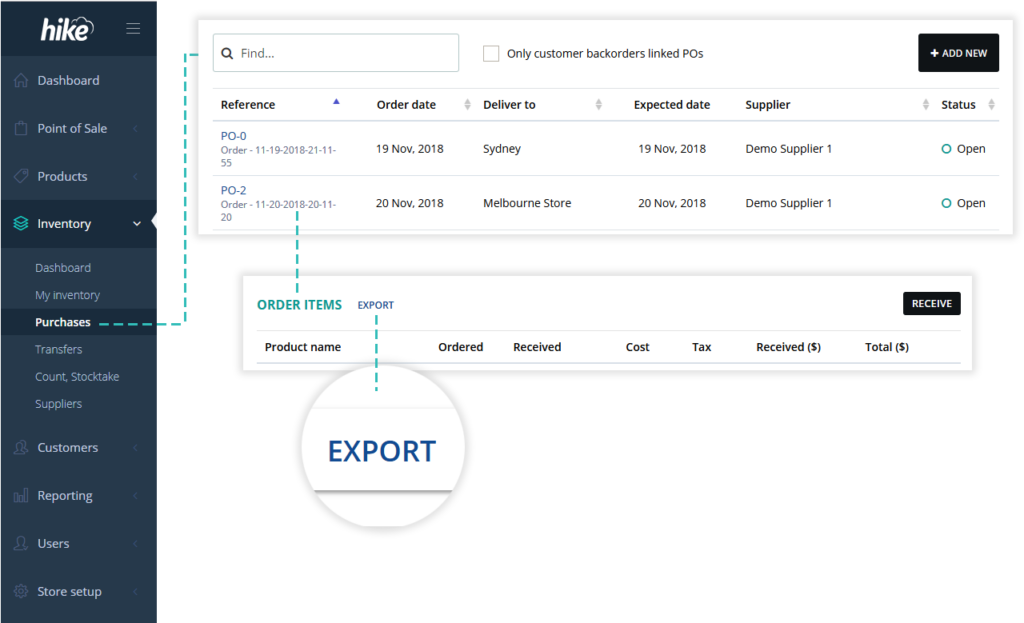
You can export a list of items from an existing purchase order and save it in a CSV (Excel) format. You can use it to create a repeat order by simply importing this file to a new purchase order.

Alternatively, if you have a supplier provided items list, you can do few minor edits to make it Hike compatible and import all items to a PO at once rather then searching through your complete product catalog.

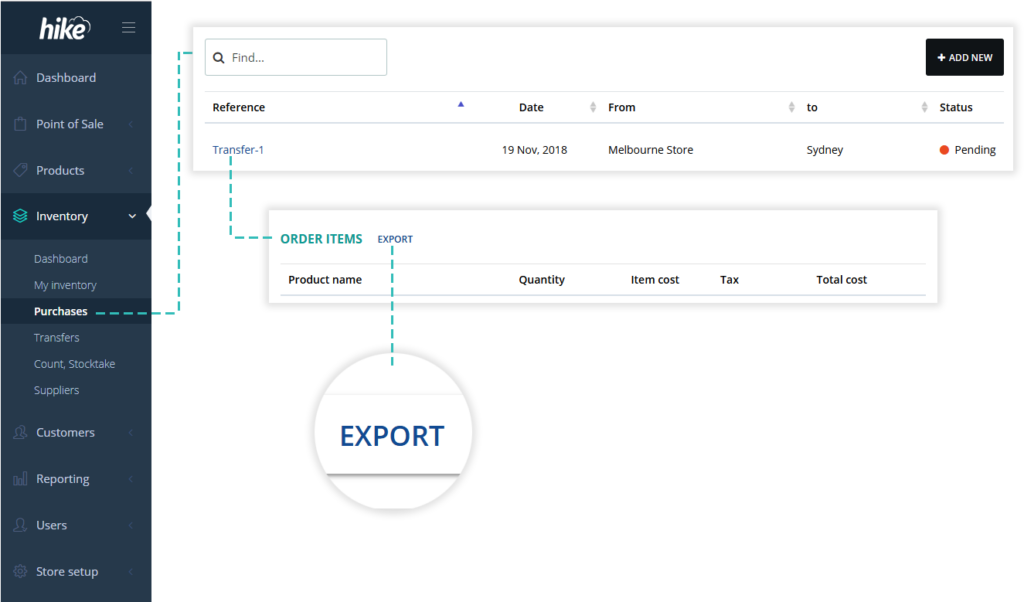
To export: Open an existing purchase order and click on the ‘Export’ button located right next to the ‘ORDER ITEMS’ title.

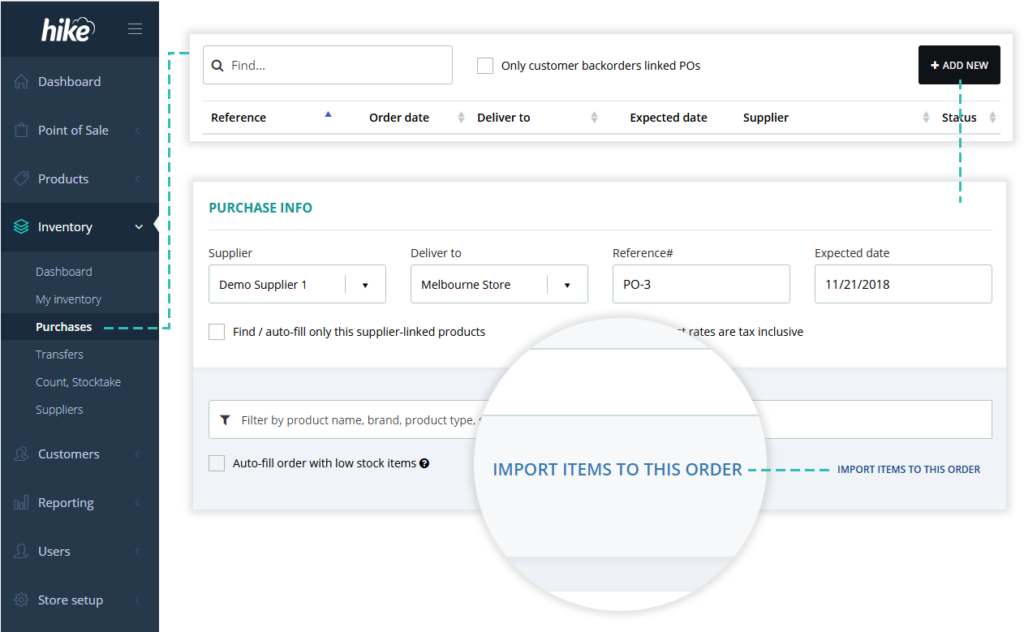
To import: Go to Purchase orders list view, click on ‘Add new’ and then click ‘Import items to this order’. This will open an upload dialog. Select and upload your CSV file.

CSV import and/or export stock transfers

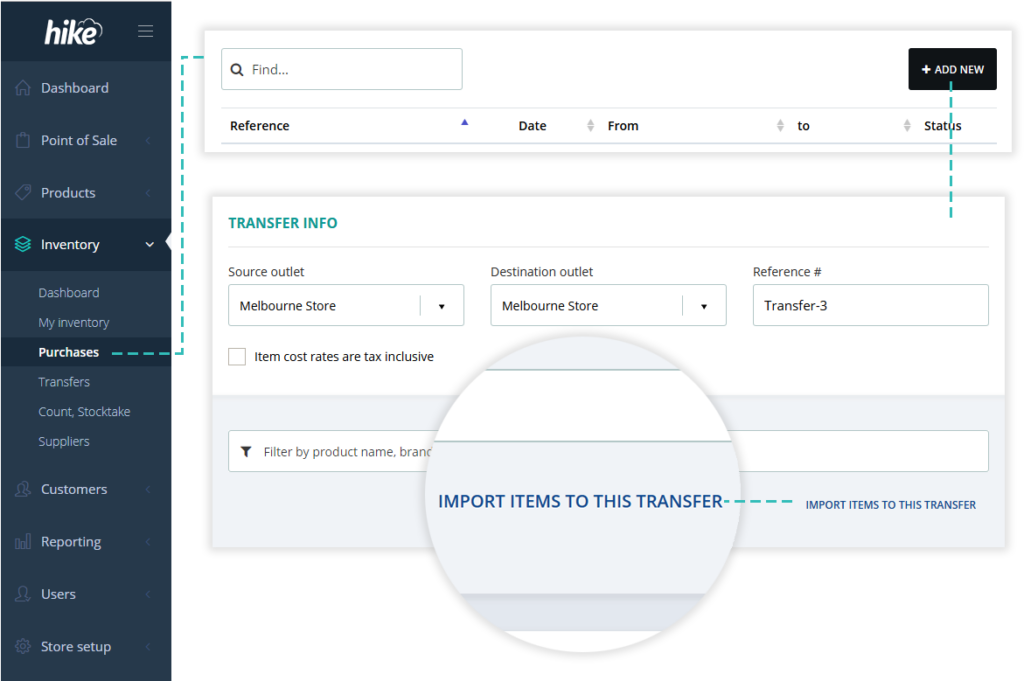
Similar to purchase orders, you can now export a list of items from an existing inventory transfer in a CSV (Excel) format. You can use this file to later create a repeat transfer by simply importing the file to a new transfer.

This becomes useful in scenarios where you have a same or very similar inventory transfers happening on a regular basis.

CSV export stock take

Now you can easily export your stock count in a CSV file. You can use it to send data to your accountant import data into a 3rd party software that is not connected to Hike.

Stock transfer and Stock take print

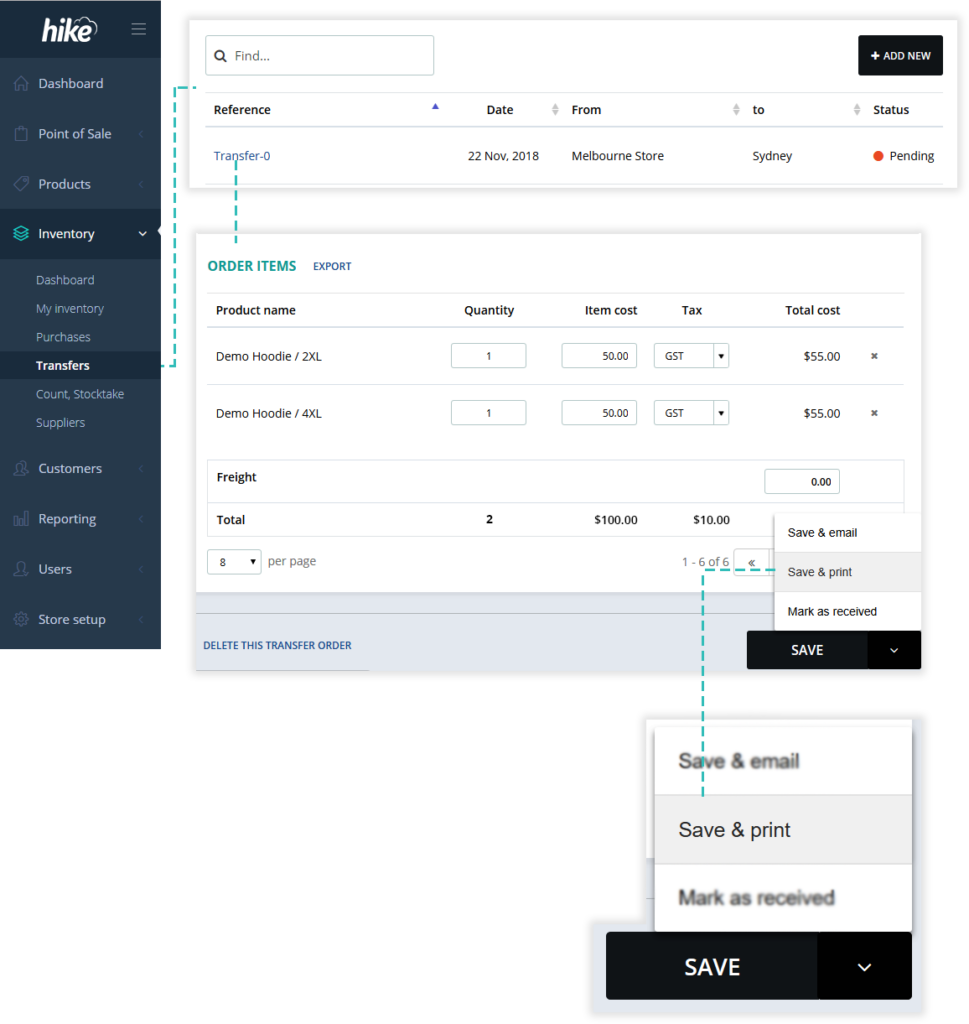
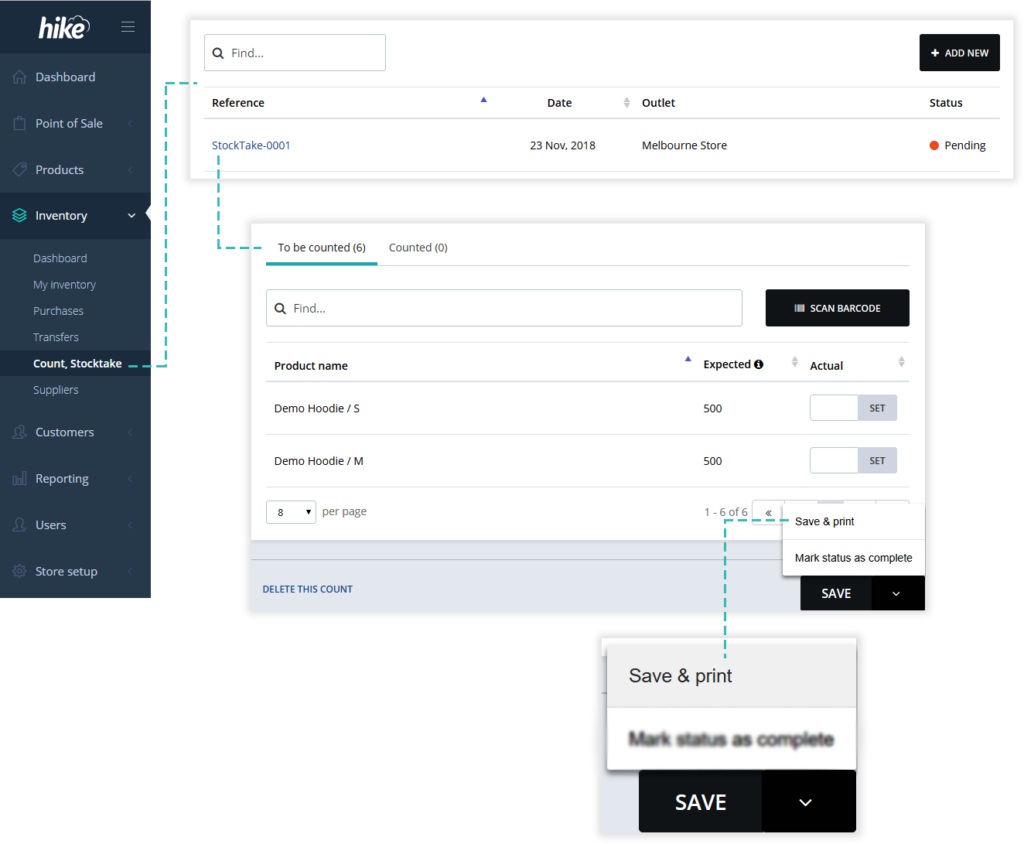
Print out completed stock transfer and inventory count records for filing or reporting.

Custom data fields for customer profiles
(One Store & Multi Store subscription plans only.)

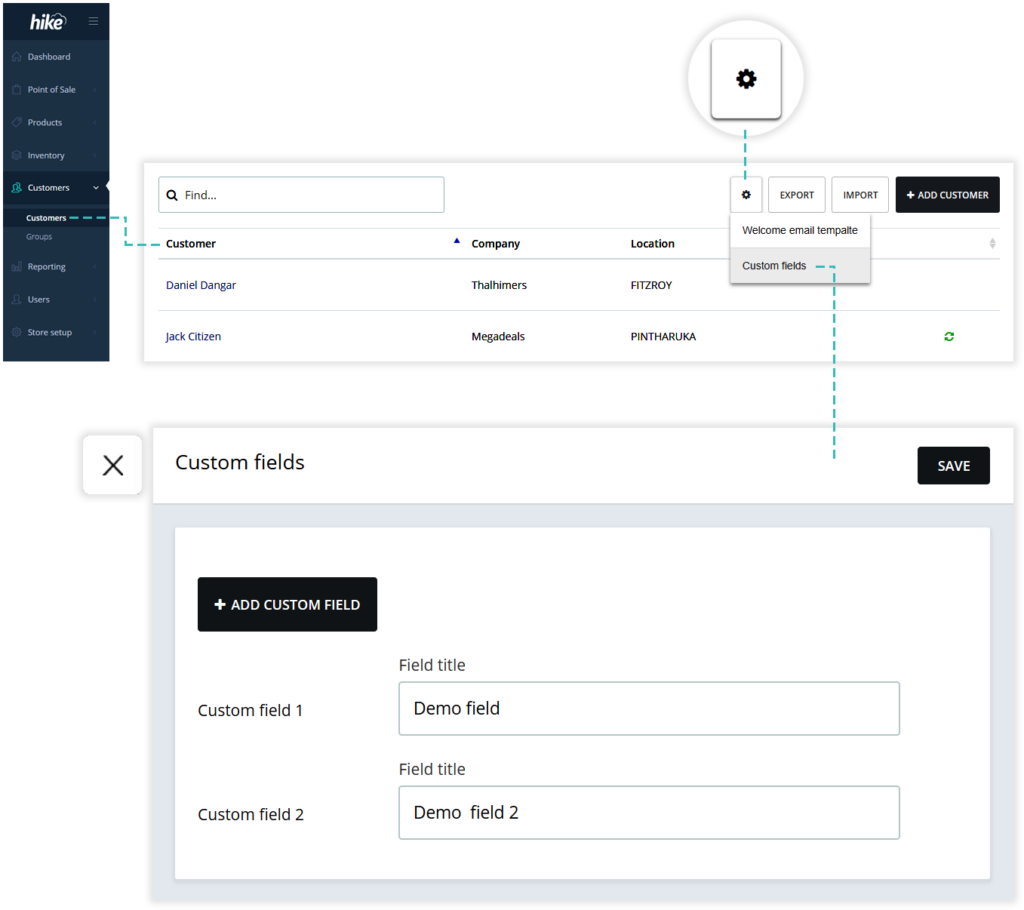
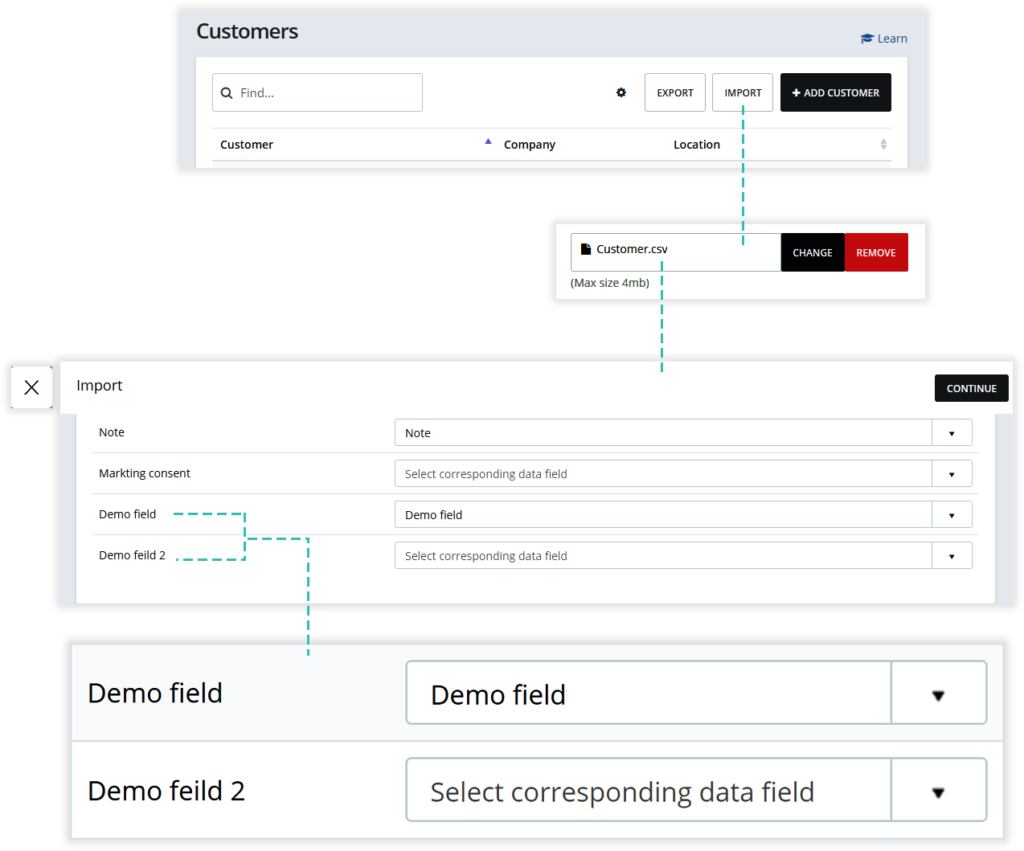
Need to capture more details from your customers? Not a problem. You can now create up to 4 custom data fields. You can even change custom field labels so it is easier for your staff to know what these fields are for.

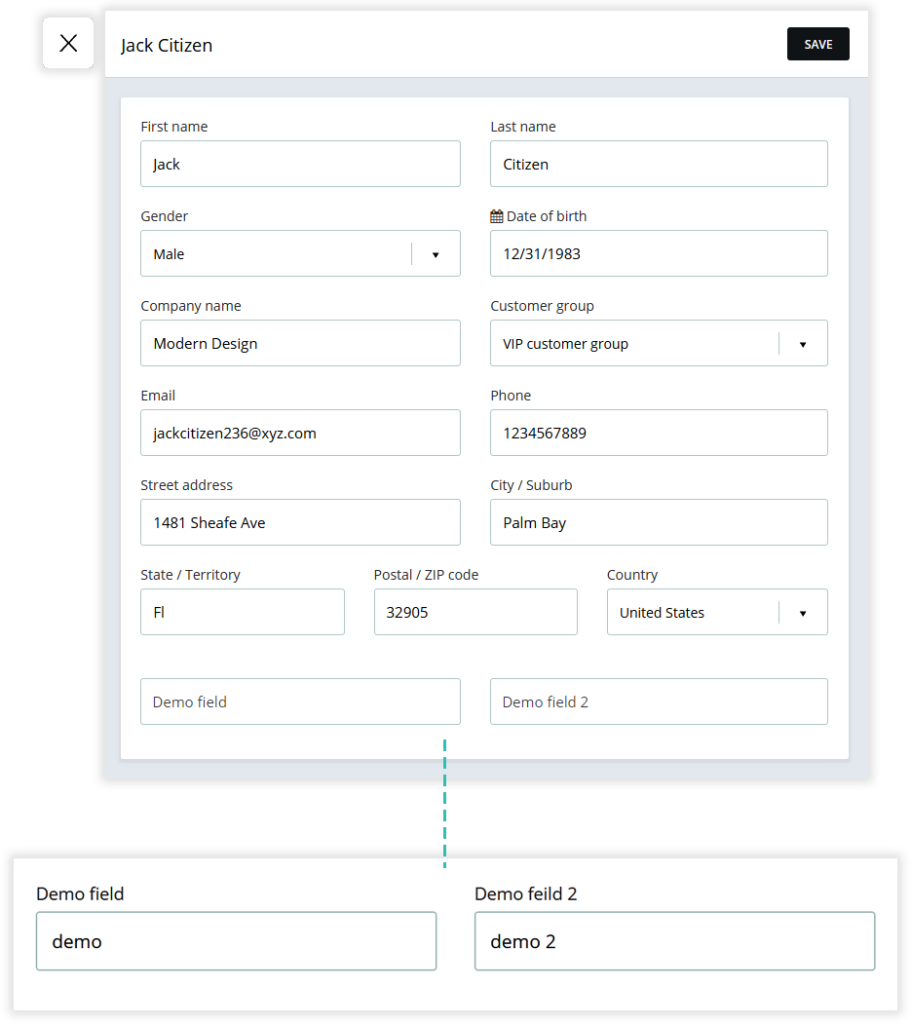
You can create and provide labels for custom data fields from the customer list page. On top right of the customer list view, click on a cog wheel icon and follow the prompts. Once these fields are saved, they will be available on customer details capture form and customer profiles.

Import / export custom data fields for customers

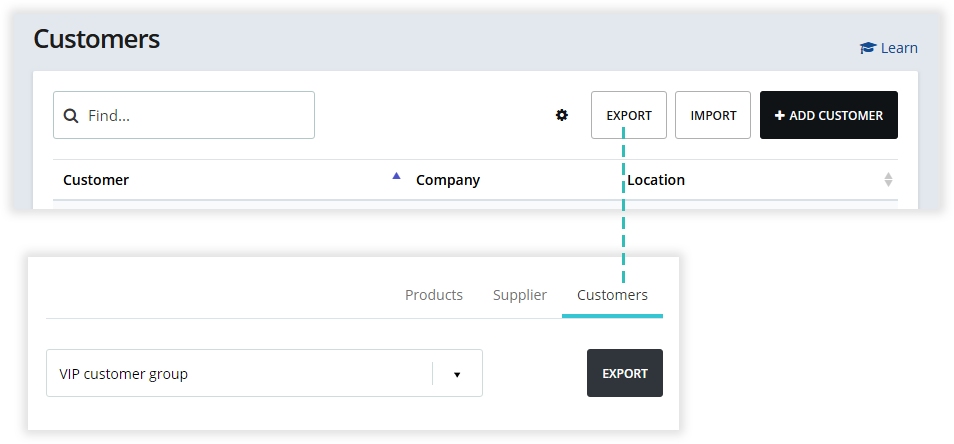
Yes! Customer custom data fields are automatically included in import and export CSV templates for bulk action. When you export customer records, custom fields are included. Similarly, you can import custom fields for existing customers in bulk using the CSV import.

Detailed analytics
(One Store & Multi Store subscription plans only.)

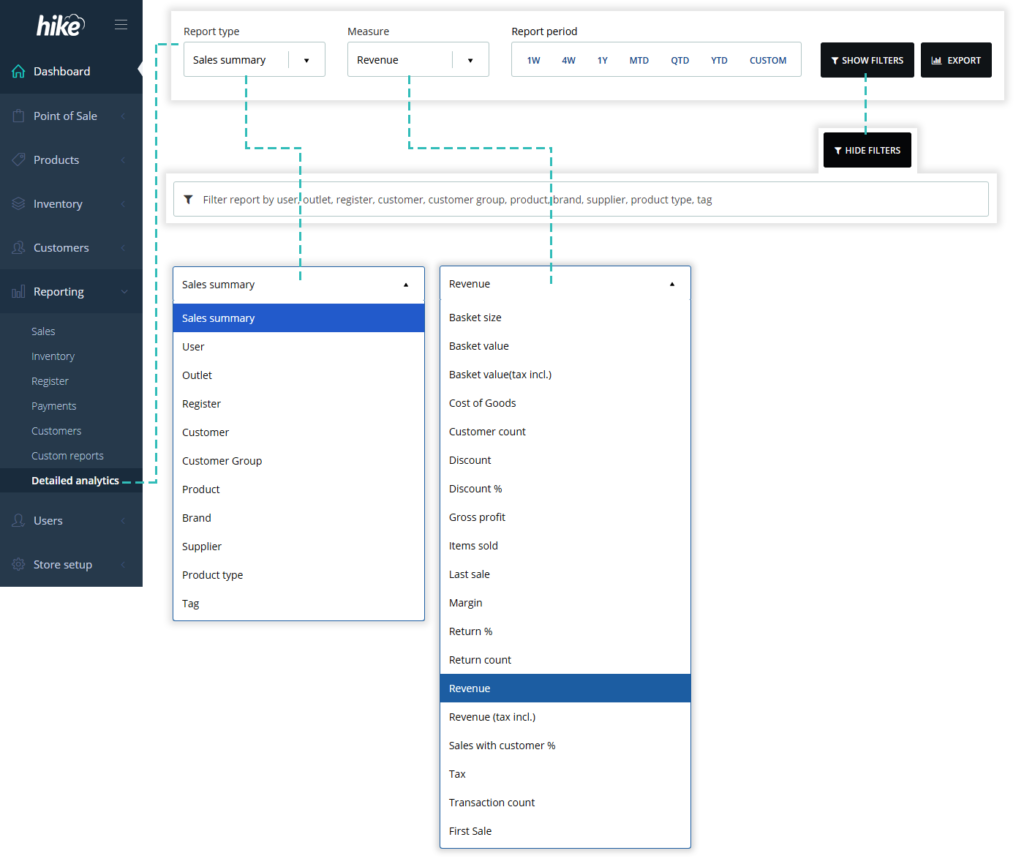
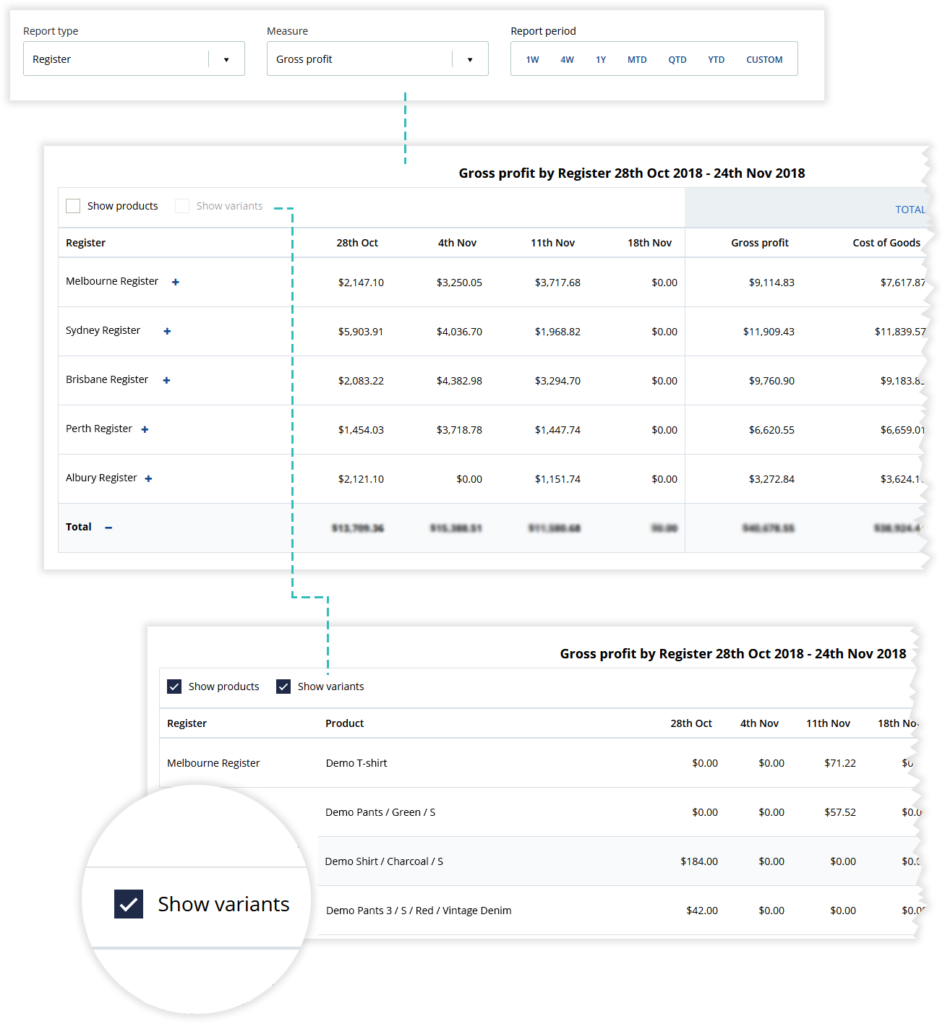
This is one of the most requested features by Hike users. Last couple of months, you’ve been saying to us that Hike reporting is good but it could be better with some in-depth detailed sales analytics. We’re pleased to unveil these new detailed analytics designed by you!

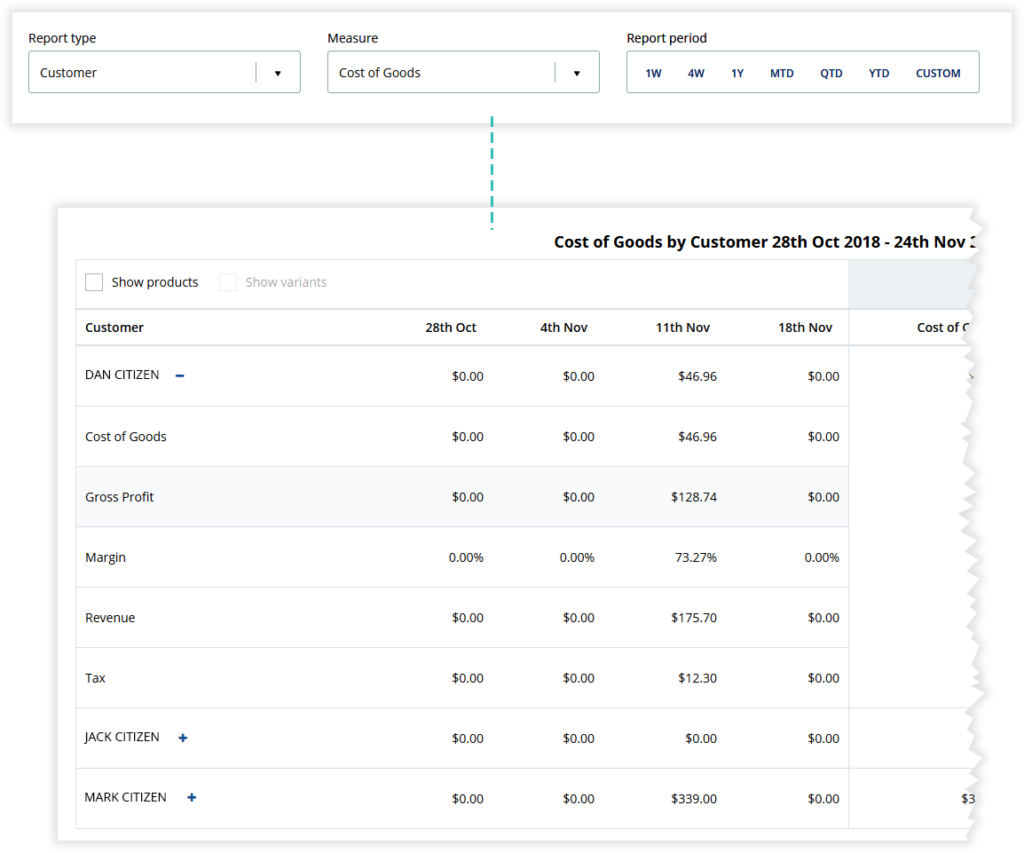
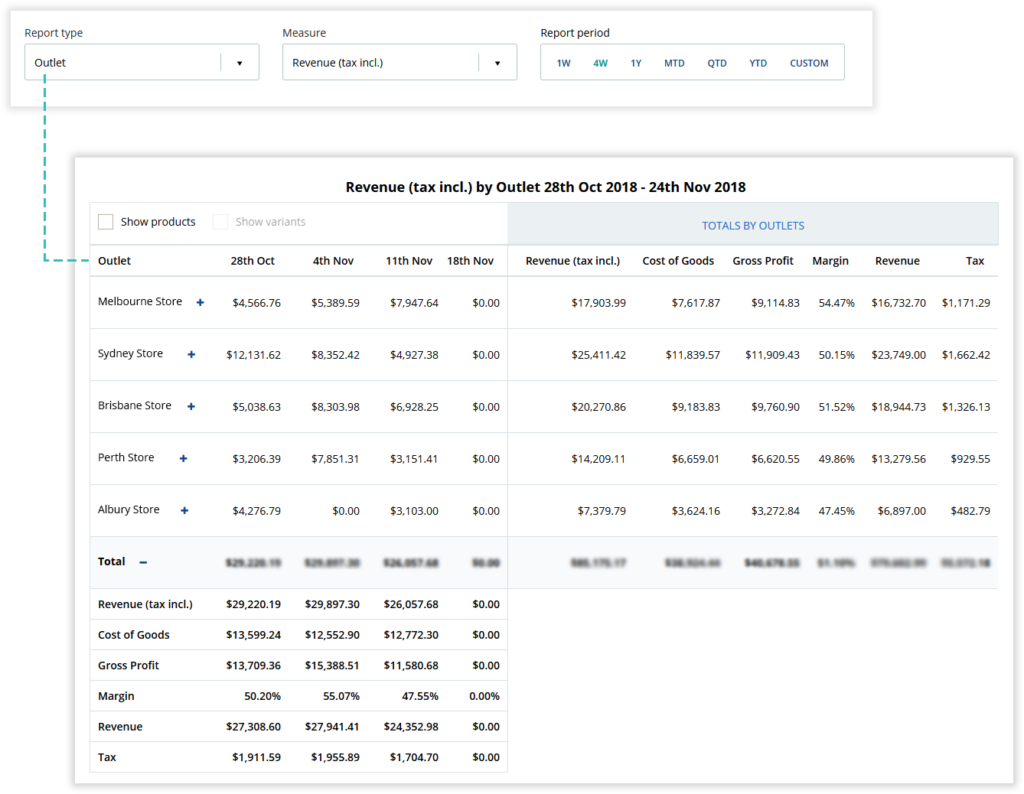
Detailed analytics focuses on providing insights related to sales, inventory, customers, and other important aspects crucial for your decision-making process. It encompasses several granular fields to create a broad picture of a retail business’ health, and sales alongside overall areas for improvement and reinforcement. Essentially, Detailed analytics is designed to help you make better choices, run your retail business more efficiently, and deliver improved customer service.

Get started today

Ready to get started with Hike?

Try Hike free for 14 days. Instant access, no credit card, no risk.

  • 14-day free trial
  • No credit card
  • Cancel anytime